
Snippets
Save text once, from a one-line reply to a formatted invoice, and insert it anywhere with a shortcut.
A snippet is a piece of text you save once and insert whenever you need it. It can be as small as your phone number or as big as a fully formatted invoice. Snippets are what SimpleFill is built around: everything else, from Fields to Blocks, lives inside them.
What a snippet is made of
| Part | What it’s for | Example |
|---|---|---|
| Name | How you find it in menus, search, and suggestions | Thanks for reaching out |
| Shortcut | What you type to insert it (optional) | thx, typed as ;thx |
| Value | What gets inserted | Hi there, thanks for reaching out!… |
| Folder | Where it’s filed (optional) | Support |
Create a snippet
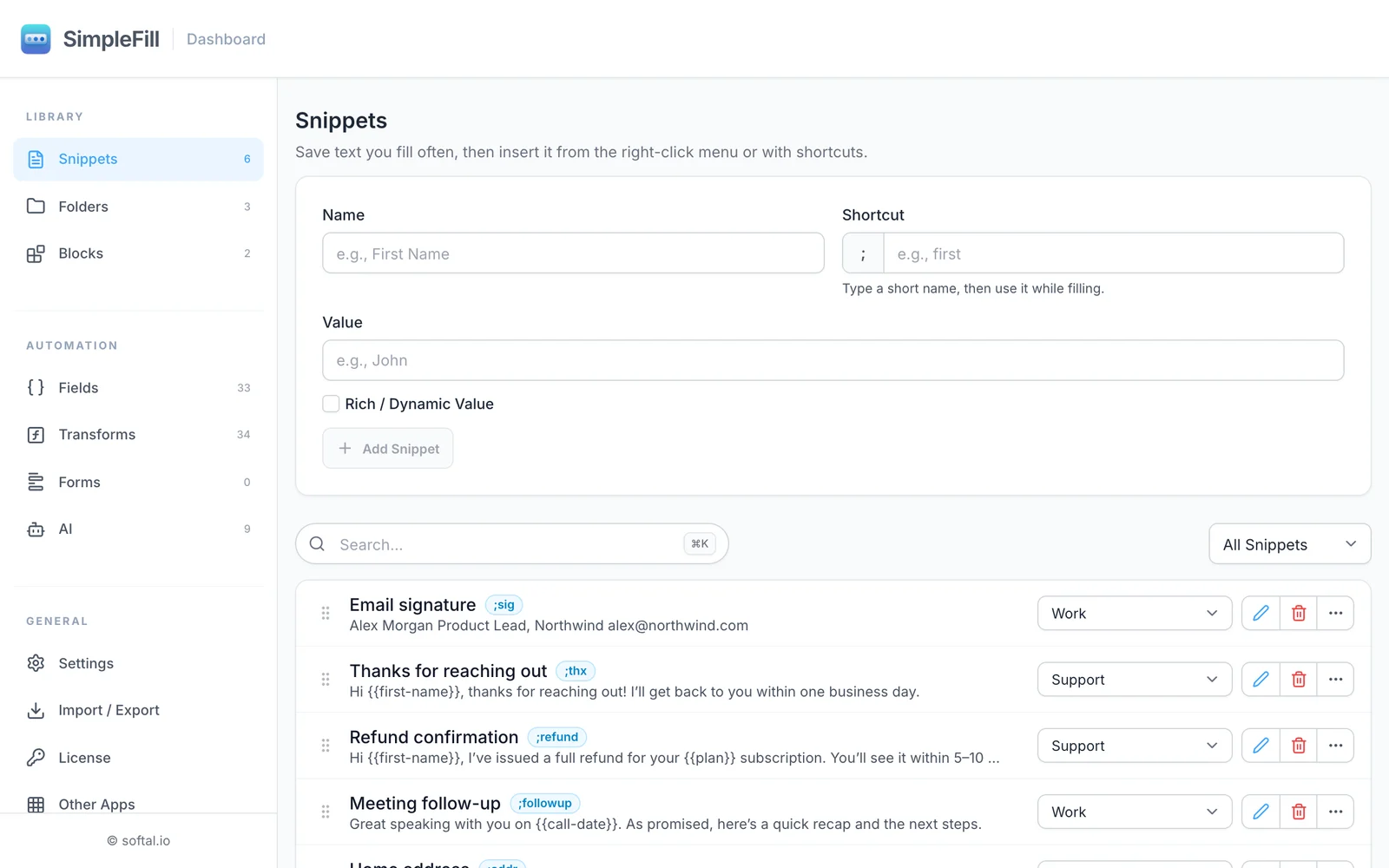
- Open the dashboard and go to Snippets.
- Enter a Name.
- Enter a Shortcut, or leave it empty if you’ll only insert this snippet from menus and search.
- Type the Value.
- Turn on Rich / Dynamic Value if you want formatting, images, tables, Fields, Smart Fields, or Blocks.
- Click Add Snippet.
Choose a good shortcut
Shortcuts are short names you type after the trigger, which is ; unless you change it. A few rules:
- Use letters and numbers. Dots are allowed between words, so
addr.homeandaddr.workare both fine. - No spaces or hyphens. Space is what tells SimpleFill to expand the shortcut.
- Shortcuts aren’t case-sensitive:
;SIGand;sigare the same. - Each shortcut can belong to only one snippet or AI action, and can’t reuse a built-in Smart Field shortcut such as
dateorurl. SimpleFill tells you if a shortcut is taken.
Good shortcuts are short, memorable, and grouped by topic:
;sig        email signature
;addr       home address
;addr.work  office address
;thx        thank-you reply
;ooo        out-of-office reply
Plain or rich
Every snippet is either plain text or rich.
Plain text is exactly what you type, line by line. It’s ideal for addresses, emails, IDs, and short replies. Plain snippets can still use a few dynamic pieces by typing them:
{{first-name}}asks for a Field calledfirst-name.{{date}}or{{page.title}}fills in a Smart Field.@addressinserts the Block calledaddress.
Rich snippets use the rich text editor. You get headings, bold and italic, colors, links, images, tables, and cards. Insert dynamic pieces as pills: type {{ for Fields and Smart Fields, or @ for Blocks.
When you insert a rich snippet into a rich editor like Gmail, Notion, or Google Docs, the formatting comes with it. In a plain text box, such as a form field, it goes in as plain text.
Insert a snippet
Every snippet can be inserted four ways:
| How | What you do |
|---|---|
| Shortcut | Type ; and the shortcut, then press Space |
| Auto-suggestions | Start typing in an input box and pick the snippet from the dropdown |
| Quick Access | Press ⌘ Shift Space (Mac) or Ctrl Shift Space, search, press Enter |
| Right-click menu | Right-click a text box, then SimpleFill > the snippet |
If the snippet has Fields, a window opens so you can fill them in before it goes in.
Organize and manage snippets
- Search: The search box above the list matches names and values. Press
⌘ KorCtrl Kto jump to it. - Filter by folder: Use the menu next to the search box.
- Reorder: Drag a snippet by its handle. The order here is the order in the right-click menu.
- Move to a folder: Use the folder menu on the snippet’s row.
- Edit or delete: Use the pencil and trash buttons. Deleting asks you to click twice, so nothing goes by accident.
The ⋯ menu on each row has two more options:
- Export as PDF: Opens your browser’s print dialog with the snippet laid out on the page. Choose Save as PDF. Handy for invoices and letters.
- Export as marketplace package: Saves a rich snippet as a package file, the format the marketplace uses.
Use transforms on a typed shortcut
For plain-text snippets, you can reshape the value as you type it by adding a Transform after a |:
;em|uppercase → ALEX@NORTHWIND.COM
This works with plain snippets and Smart Fields. For rich snippets, add transforms to the pills inside them instead.
Examples
A personal details set. Save ;first, ;last, ;em, ;phone, and ;addr in a Personal folder. Sign-up forms take seconds, and Quick Access can even combine them, offering your full name in a single Name box.
A support reply library. Keep a Support folder of rich replies: ;refund, ;shipping, ;reset. Each one greets the customer by name with a Field and ends with your signature Block.
An invoice. A rich snippet with a table, your logo, Fields for the client and amount, and a calculation for the total. Insert it into an email, or export it as a PDF.
Limits
The Free plan includes 5 snippets, Standard 50, and Pro unlimited. See Plans and licenses.