
Basic and Custom Fields
Mark the parts of a snippet that change, and fill them in each time it expands.
A Field is a blank in a snippet that you fill in each time you use it. Instead of keeping ten versions of the same reply for ten customers, keep one reply with a Field for the name. SimpleFill asks for it as the snippet goes in.
There are two kinds, and they work the same way:
- A Custom Field is saved in your Fields list, so any snippet can use it.
- A Basic Field lives inside one rich snippet, for a blank only that snippet needs.
How it works
- You create a Custom Field, say
first-name. - You put it in a snippet:
Hi {{first-name}}, thanks for your order! - You insert the snippet. A window opens showing your whole message, with a text box where
{{first-name}}was. - You type
Janeand press Insert. The page getsHi Jane, thanks for your order!
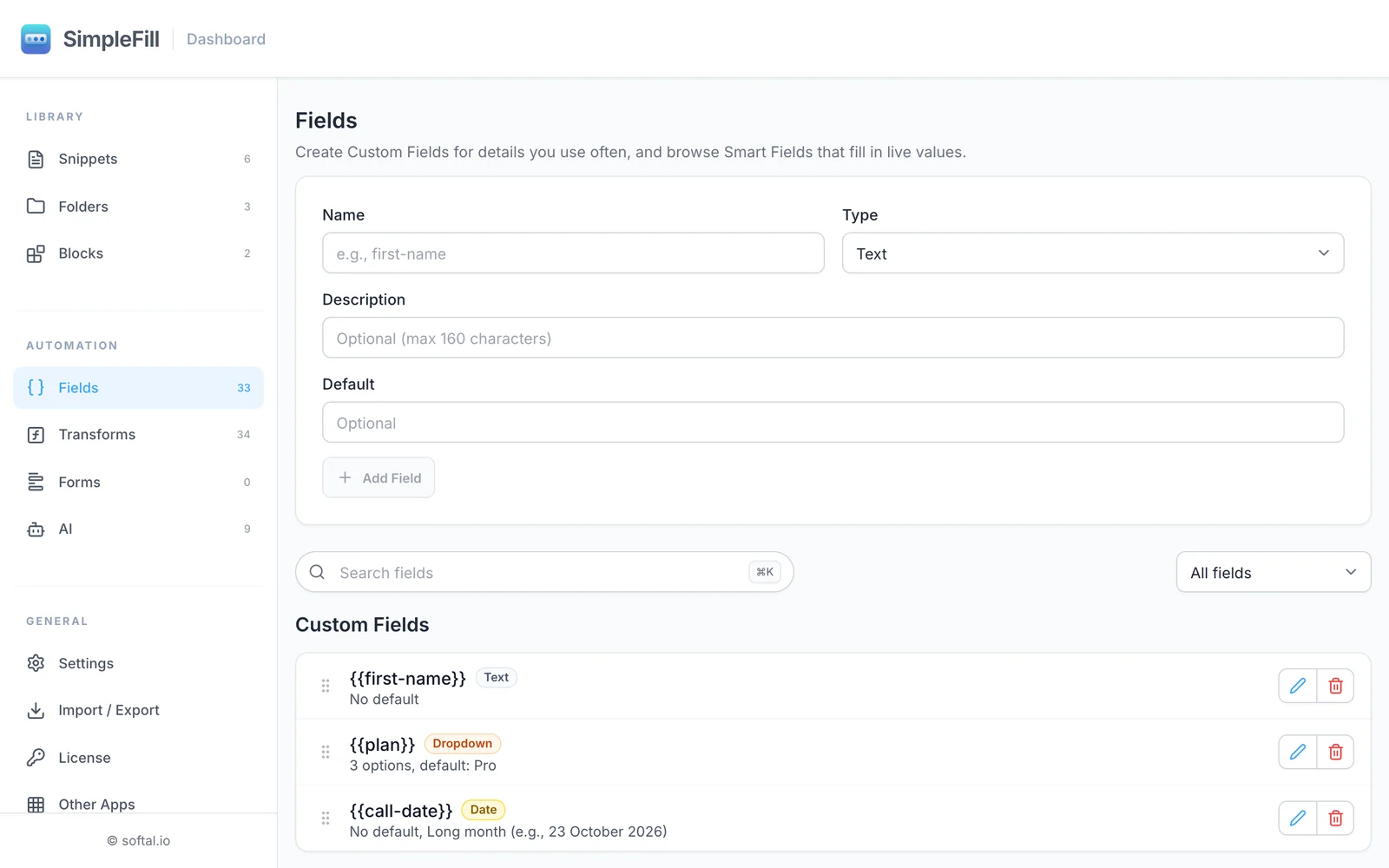
Create a Custom Field
- Go to Fields.
- Enter a Name, like
first-name. Names are lowercase, with hyphens between words. - Choose a Type (see below) and fill in its settings.
- Optionally add a Description of up to 160 characters, to remind you what it’s for.
- Click Add Field.
Field types
Both kinds of Field come in the same types.
| Type | What you fill in | Settings |
|---|---|---|
| Text | A single line, like a name or an order number | Default value |
| Textarea | A few lines, like a note or a reason | Default text |
| Dropdown | One choice from a list | Options, Default option |
| Multi-select | Several choices from a list | Options, Join with, Default selections |
| Date | A date from a date picker | Default date, Inserted format |
Dropdown and Multi-select options
Write one option per line. To show one thing in the menu but insert another, separate them with |:
Starter
Pro | Pro plan, with priority support
Team | Team plan for up to 10 people
Choosing Pro inserts Pro plan, with priority support. A line without | inserts exactly what it shows.
If a Dropdown has no default, you must pick an option before Insert becomes available, so you never send a message with a blank in it. A Multi-select joins your choices with , unless you change Join with.
Date formats
A Date Field inserts the date in the Inserted format you choose:
| Format | Example |
|---|---|
| Local date (the default) | 23/10/2026 or 10/23/2026, depending on your browser’s language |
YYYY-MM-DD | 2026-10-23 |
MM/DD/YYYY | 10/23/2026 |
DD/MM/YYYY | 23/10/2026 |
| Short month | 23 Oct 2026 |
| Long month | 23 October 2026 |
When the box you’re filling on the page is itself a date picker, SimpleFill always uses the format the page expects.
Add a Custom Field to a snippet
- Rich snippet: type
{{and choose the Field, or use Insert field > Custom Fields. - Plain snippet: type its name in double curly braces, like
{{first-name}}.
Basic Fields: blanks for one snippet
Sometimes a blank only makes sense in one snippet. Instead of creating a Custom Field, choose Insert field > Basic Fields in the rich text editor and pick Text, Textarea, Dropdown, Multi-select, or Date. Click the pill to set it up under Field settings.
It works like any Field, but it lives only inside this snippet and doesn’t appear in your Fields list. Marketplace templates use Basic Fields, so a template never clutters your library.
The fill-in window
When you insert a snippet with Fields, from a shortcut, the right-click menu, or Quick Access, SimpleFill opens a window titled with the snippet’s name:
- It shows a preview of the whole snippet, with an input wherever a Field sits.
- Smart Fields show as labels; they fill in on their own.
- The first input is ready for typing. Press Tab to move to the next.
- Click Insert to put the finished text on the page, or Cancel (or press Escape) to stop.
Snippets with only Smart Fields, and no Fields to fill in, skip the window and go straight in.
Change your text as it goes in
Add a Transform to a Field’s pill to tidy up whatever you type. Put titleCase on a name Field, and typing jane doe inserts Jane Doe. Click the pill, then Add transform.
Rename or delete a Field
- Renaming a Field updates it everywhere it’s used.
- A Field that’s in use can’t be deleted. SimpleFill lists the snippets and Blocks that use it, so you can remove those first.
- Each Field’s row tells you where it’s used: Not used yet, or Used in 3 snippets or Blocks.
Examples
Personal follow-up
Hi {{first-name | titleCase}},

Great speaking with you on {{call-date}}. As discussed, I’ve attached
the proposal for {{company}}. Let me know if you have questions!
Plan-specific reply. A Dropdown plan with Starter, Pro, and Team, used in a reply that explains what’s included. Pair it with an If / Else to add a line only Pro customers see.
Meeting notes header. A Multi-select attendees with your team’s names, joined with , , and a Date Field meeting-date in Long month format.
Limits
Custom Fields count toward your plan: 5 on Free, 50 on Standard, and unlimited on Pro. Basic Fields and Smart Fields don’t count.