
Smart Fields
Values SimpleFill fills in for you, such as today’s date, the page you’re on, or your clipboard.
Smart Fields are values SimpleFill fills in for you: today’s date, the time, the page you’re on, what you just copied. Use them on their own by typing a shortcut on any page, or put them inside snippets so every message picks up the right details automatically.
Two ways to use them
Type them anywhere. In any text box, type the trigger and a Smart Field’s shortcut, then press Space:
;date   →  23/10/2026
;time   →  15:30
;url    →  https://example.com/pricing
;title  →  Pricing — Example
Put them in snippets. In a rich snippet, type {{ and pick one, or use Insert field, where each is under its category, like Page or Date & Time. In a plain snippet, type it in curly braces, like {{date}} or {{page.title}}.
Built-in Smart Fields
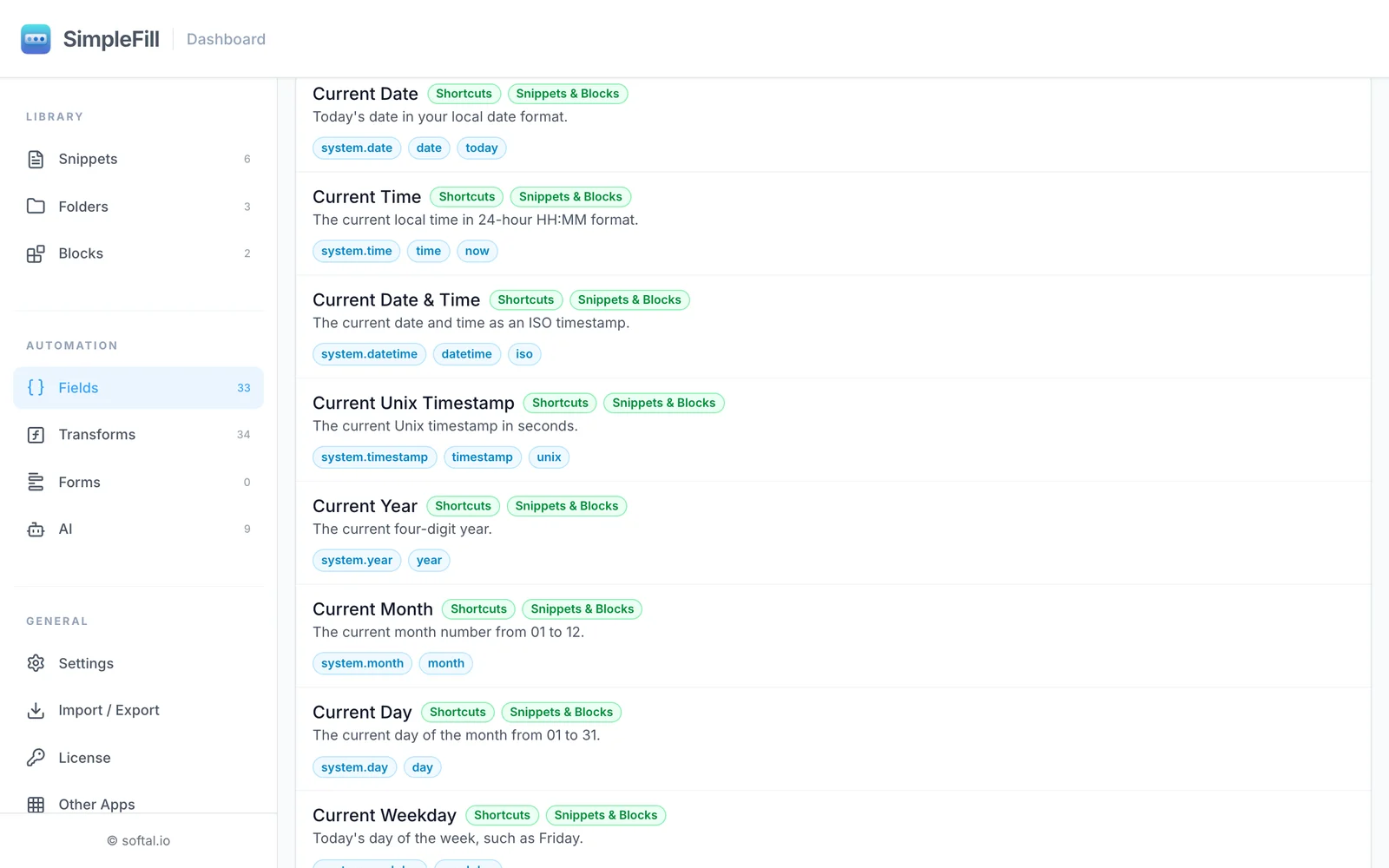
You’ll find them all in the dashboard under Fields > Smart Fields. Each one has a full ID, like page.url, and one or more short shortcuts, like url. Both work.
Page
| Smart Field | Shortcuts | Example |
|---|---|---|
| Current Page URL | url, currenturl | https://example.com/account?tab=billing |
| Current Page Title | title | Billing — Example |
| Current Domain | domain, host, hostname | www.example.com |
| Current Page Origin | origin | https://example.com |
| Current Page Path | path, pathname | /account |
| Current Page Query | query, querystring, search | ?tab=billing |
| Current Page Protocol | protocol, scheme | https |
| Referrer URL | referrer, referer | The page that linked here, when available |
Date & Time
| Smart Field | Shortcuts | Example |
|---|---|---|
| Current Date | date, today | 23/10/2026, in your browser’s date format |
| Current Time | time, now | 15:30 |
| Current Date & Time | datetime, iso | 2026-10-23T15:30:00 |
| Current Unix Timestamp | timestamp, unix | 1792771800 |
| Current Year | year | 2026 |
| Current Month | month | 10 |
| Current Day | day | 23 |
| Current Weekday | weekday | Friday |
| Current Month Name | monthname | October |
| Current Week Number | week | 43 |
| Tomorrow | tomorrow | 24/10/2026 |
| Yesterday | yesterday | 22/10/2026 |
Dates use your browser’s local format. To choose an exact format, add the formatDate Transform, like {{date | formatDate("D MMMM YYYY")}}.
Current Field
These read the text box you’re in, so they work only when typed on a page, not inside snippets.
| Smart Field | Shortcuts | What it gives you |
|---|---|---|
| Current Field Value | current, value | The text already in the box |
| Current Field Length | length, len | How many characters it has |
| Current Field Max Length | maxlength, limit | The box’s character limit, if it has one |
| Current Field Remaining Characters | remaining, left | How many characters you have left |
Clipboard
| Smart Field | Shortcut | What it gives you |
|---|---|---|
| Clipboard | clipboard | The text you last copied |
To use it, turn on Clipboard access in Settings > General. Your browser asks for permission once. Safari has no such setting: the first time you fill in the clipboard, macOS may ask you to let SimpleFill paste from other apps.
Calculations and Conditions
Add Fields, Subtract Fields, Multiply Fields, Divide Fields, and If / Else are Smart Fields too. They work inside rich snippets only. See Calculations and Conditions.
Key Presses
These press a key instead of typing text, so a snippet can move from field to field and send a form. They work inside snippets and Blocks. See Key presses.
| Smart Field | Shortcuts |
|---|---|
| Tab, Shift+Tab | tab, shifttab |
| Enter | enter |
| Space | space |
| Backspace, Delete | backspace, delete |
| Escape | escape, esc |
| Up Arrow, Down Arrow, Left Arrow, Right Arrow | arrowup, arrowdown, arrowleft, arrowright |
Mouse Actions
Click clicks an element you choose on a website, like a button, a switch, or an option in a list that keys can’t reach. You choose the element in the pill’s settings, so it works in rich snippets and Blocks. See Mouse actions.
Smart Fields for specific websites
Add-ons from the marketplace teach SimpleFill to read details from particular websites, such as the person you’re messaging on LinkedIn, the contact open in HubSpot, or the pull request you’re reviewing on GitHub:
Hi {{li.firstname}}, thanks for connecting!
Add-on fields fill in only on their own websites. They appear under Fields > Add-ons, and in the editor’s Insert field menu under the add-on’s name.
Reshape a Smart Field
Add a Transform with |. You can do it right on the page:
;title|uppercase       →  BILLING — EXAMPLE
;date|addDays(7)       →  30/10/2026
;title|slugify         →  billing-example
or inside a snippet: {{page.title | uppercase}}.
Examples
Bug report. A snippet that includes {{page.url}} and {{datetime | utc}}, so every report says exactly where and when.
Reply-by date. Please reply by {{date | addBusinessDays(5)}}. always gives a date five working days away.
Share this page. Type ;title, a dash, then ;url, and you have a tidy title and link to paste into chat.
Weekly report. Week {{week}} update, {{monthname}} {{year}} heads every report correctly.