
Account and data
Import and export
Back up your library, move it to another browser, or bring in data from SimpleFill 3.
Your SimpleFill library lives in your browser. Export it to keep a backup, to move to a new computer, or to use it in another browser, then import it there.
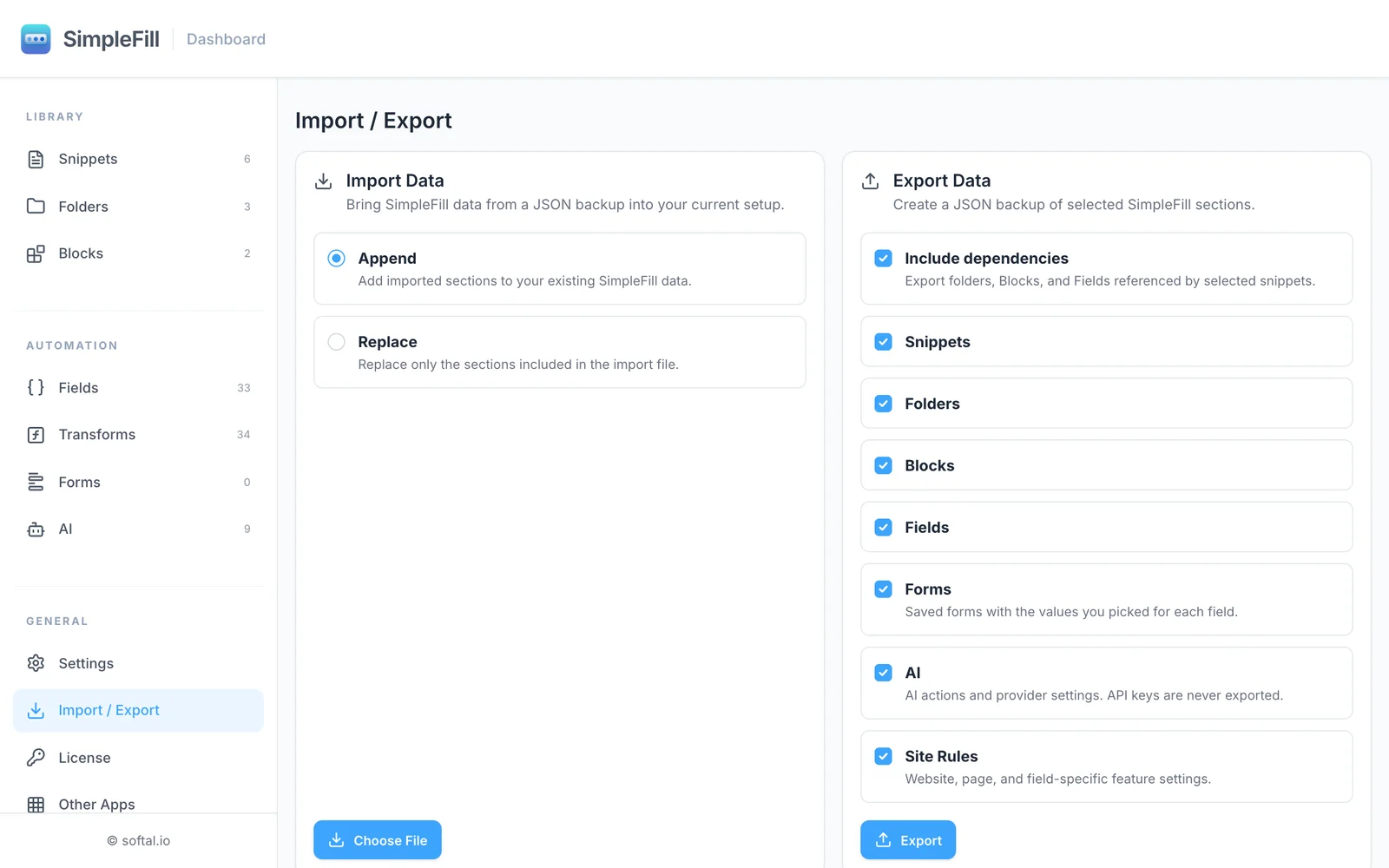
Export your data
- Open the dashboard and go to Import / Export.
- Under Export Data, choose what to include: Snippets, Folders, Blocks, Fields, Forms, AI, and Site Rules. Everything is selected at first. AI has your AI actions, providers, and Memory notes.
- Leave Include dependencies on to also export the folders, Blocks, and Fields your selected snippets use.
- Click Export. Your browser downloads
simplefill-data.json.
A few things aren’t in the file:
- Settings, which can follow you through your browser’s sync instead. See Privacy and storage.
- Add-ons. Add them again from the marketplace.
- Your license, AI logs, and Quick Access history.
Import data
- Go to Import / Export.
- Under Import Data, choose how to import:
- Append adds what’s in the file to what you already have, skipping duplicates.
- Replace replaces only the sections that are in the file. Sections that aren’t in the file are left alone.
- Click Choose File and pick your
.jsonfile.
SimpleFill then shows a summary of what was imported, skipped, or renamed.
What happens with clashes
SimpleFill keeps your library tidy when an import overlaps with what you have:
- Duplicates are skipped when appending.
- Blocks and Fields with the same name get a number, like
address-2, and the snippets that use them are updated to match. - Memory notes you already have are skipped when appending, and notes stop being added once Memory is full.
- Shortcuts already in use aren’t duplicated. The imported snippet is added without its shortcut, so you can give it a new one.
- Plan limits are checked before anything is written. If the import would take you over a limit, nothing is imported, and you can choose fewer sections or upgrade.
Moving from SimpleFill 3
- Updating the extension: your saved Form Data moves to Snippets automatically the first time SimpleFill 4 runs. Nothing to do.
- A SimpleFill 3 backup file: import it as usual. SimpleFill reads it and adds your Form Data as snippets.
- An older export from earlier versions: convert it first with the Data Converter. It runs entirely in your browser. Then import the converted file.
Tips
- Export a backup every now and then, and before reinstalling your browser or the extension. Uninstalling SimpleFill deletes its data from the browser.
- To share a set of snippets with a colleague, export just Snippets with Include dependencies on. They Append it to their library.
- To share a single rich snippet, use Export as PDF for people, or Export as marketplace package from its ⋯ menu.