
One-click form fill
Save a whole form once, then fill every field on the page in one click.
Some forms you fill again and again: a shipping address at checkout, a weekly timesheet, a support portal’s contact form. With one-click form fill, you save the answers to a whole form once. Next time, right-click the page and every field fills in at once, text boxes, dropdowns, checkboxes, and all.
Save a form
The quickest way starts on the form itself:
- Open the page with the form.
- Right-click the page and choose SimpleFill > One-Click Fill > Save Form.
- The dashboard opens on Forms and scans the page for you.
Save Form is in that menu on every web page, below any forms already saved for it, so you can save another one there too. You can also open Quick Access and run Save current form….
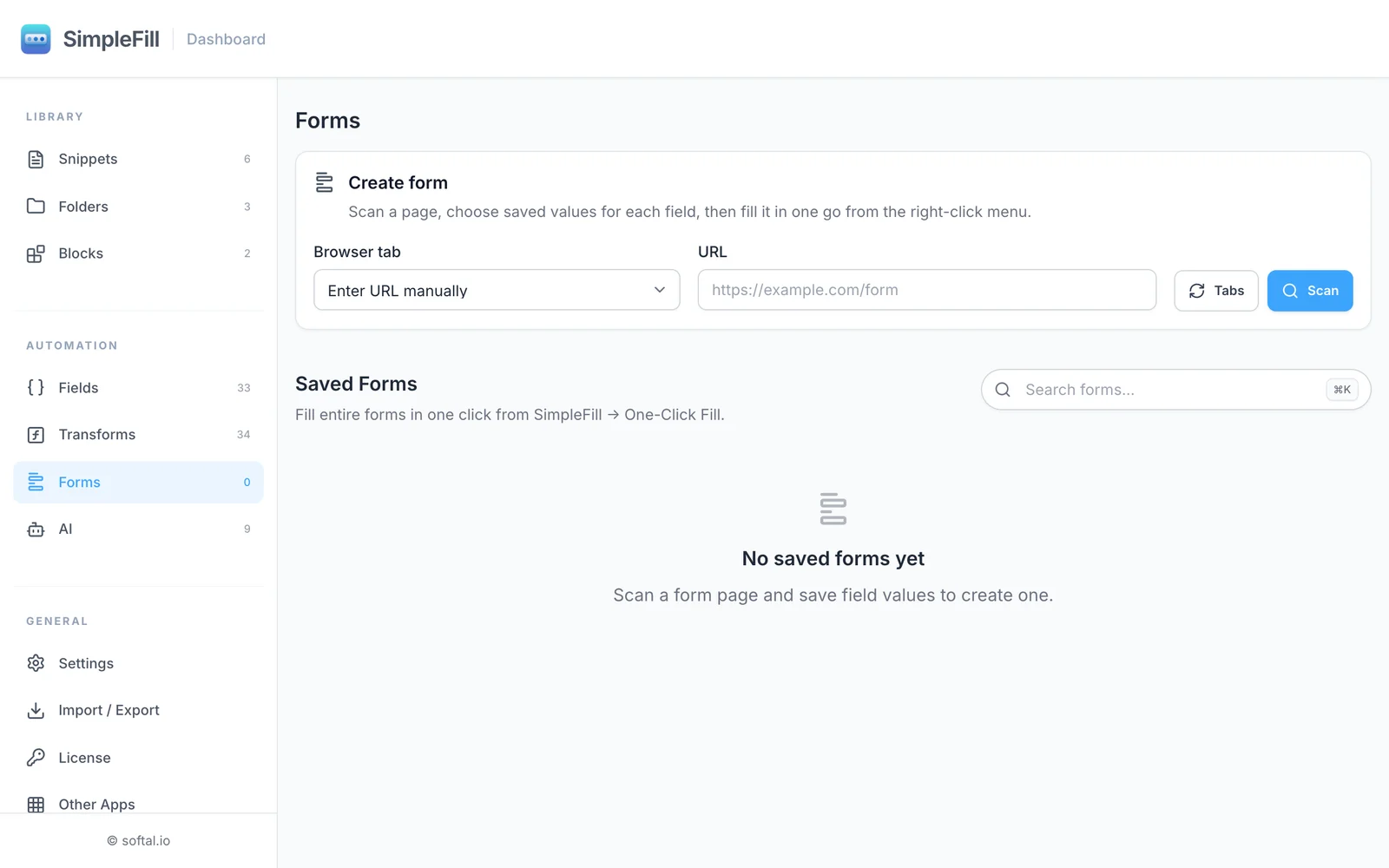
Or start from the dashboard:
- Go to Forms.
- Under Browser tab, pick the tab with the form. (Click Tabs to refresh the list.) Or choose Enter URL manually and type the address.
- Click Scan.
Then, for either way:
- SimpleFill lists every field it found, grouped by form. Each starts with what the page held when it was scanned.
- Set the value you want for each field: type text, pick dropdown options, set checkboxes to Checked or Unchecked, or choose a date.
- Give the form a Name, like
Home address. - Click Save form.
Fill a form
On the page, right-click and choose SimpleFill > One-Click Fill, then the form you want. Every form saved for the page is listed there.
You can also open Quick Access on the page. Matching forms appear as Fill followed by the form’s name.
SimpleFill fills the form but doesn’t submit it, so you can check everything first. To fill a form and send it in one go, write a snippet with key presses and clicks instead.
Dates
A date field can fill in the same date every time, or one worked out when it fills: under Date, choose A date and pick it, Today, or Days from today, like 30 for a month from today and -1 for yesterday.
This works for two kinds of date field:
- Date: the browser’s own date box. SimpleFill puts the date straight in.
- Calendar date: a date box a site draws itself, which opens a calendar when you click it. SimpleFill opens the calendar, moves it to the right month, and clicks the day, the same way a Click does. If the box opens no calendar but takes typing, it types the date in your date format instead.
Calendar dates are filled after the other fields. If a calendar won’t take a date yet, like a start date that’s after the end date the form shows, SimpleFill tries it again once the other dates are in. A date the calendar has turned off for good, like one before the earliest it allows, is left empty rather than typed in around it. A date that’s already the one selected is left as it is, so filling a form twice doesn’t clear it.
Date range pickers, like Jan 20 – Feb 9, and pickers that take several dates aren’t saved: one date picked in them would leave the range half made. Time pickers and other boxes that aren’t dates stay text boxes.
Keep more than one version
Save the same form twice with different values, like Shipping: Home and Shipping: Office, or Work profile and Personal profile. Both appear in the One-Click Fill menu on that page, and you pick one each time.
Which pages a form matches
Open Advanced Settings > URL matching when saving:
- Path only (the default): matches the page’s address, ignoring anything after
?or#. Best for most forms. - Exact URL: matches only the exact address, including everything after
?.
What gets saved
SimpleFill saves text boxes, text areas, dropdowns, radio buttons, checkboxes, multi-select lists, and dates. It skips:
- Password fields. Passwords are never saved.
- Hidden fields, file uploads, buttons, and disabled or read-only fields.
The values in a saved form are fixed text, apart from dates counted from today. They don’t use snippets, Fields, or Smart Fields. For a reply that changes each time, use a snippet instead.
Manage saved forms
Under Saved Forms, search, edit, or delete your forms. Editing lets you change values, rename the form, or adjust URL matching.
Examples
- Online shopping: your shipping and billing address, saved once per store.
- Timesheets: a weekly form with the same project, hours, and approver.
- Testing: developers and QA teams can fill a sign-up form with test data in one click, every time.
- Job applications: portals that ask for the same contact details, links, and answers.
Limits
The Free plan includes 5 saved forms, Standard 50, and Pro unlimited.