
Account and data
Settings
Every setting in SimpleFill, and what it does.
Open the dashboard and go to Settings. Here’s every setting and what it does.
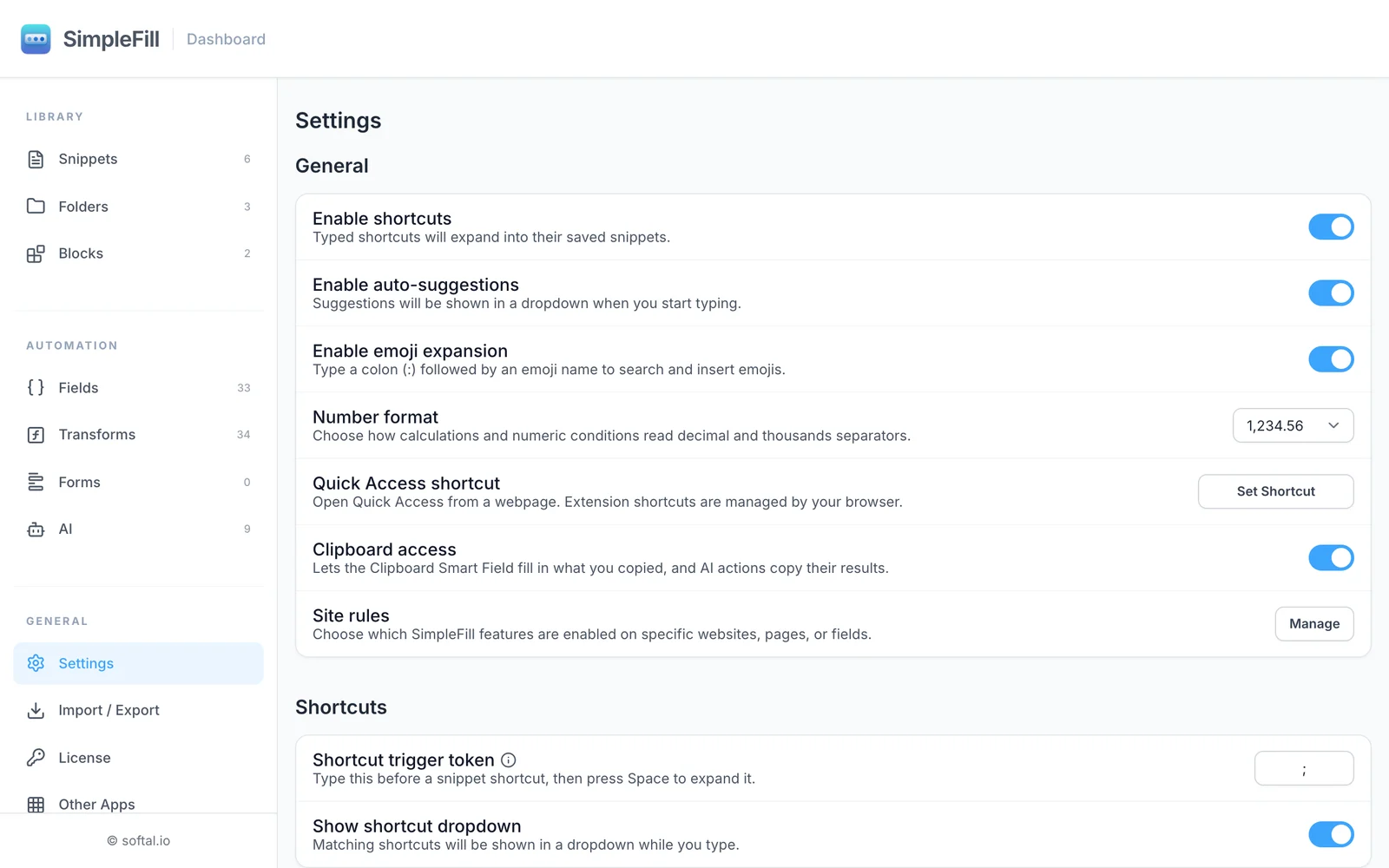
General
| Setting | Default | What it does |
|---|---|---|
| Get Started in the sidebar | On until you finish the tour | The box at the bottom of the sidebar, with the tour and a tryout for every feature. Its description links to Get Started, so you can open it with the box turned off |
| Enable shortcuts | On | Expands snippet, Smart Field, and AI shortcuts as you type |
| Enable auto-suggestions | On | Shows matching snippets in a dropdown as you type |
| Enable emoji expansion | On | Finds and inserts emoji when you type : and a word |
| Number format | From your browser | 1,234.56 or 1.234,56; how calculations and number Transforms read numbers |
| Quick Access shortcut | ⌘ Shift Space / Ctrl Shift Space | Opens your browser’s shortcut page, where you can change it |
| Clipboard access | Off | Lets the Clipboard Smart Field read what you copied, and AI actions copy results |
| Site rules | None | Turns features on or off for particular sites, pages, or fields. See Site rules |
Shortcuts
| Setting | Default | What it does |
|---|---|---|
| Shortcut trigger token | ; | What you type before a shortcut. See Change the trigger |
| Show shortcut dropdown | On | Lists matching shortcuts while you type |
Auto-suggestions
| Setting | Default | What it does |
|---|---|---|
| Include multi-line text in auto-suggestions | Off | Also suggests multi-line and rich snippets |
| Show auto-suggestions in textarea fields | Off | Also shows suggestions in larger text areas, not just single-line boxes |
| Add a tab when using auto-suggestions dropdown | On | Moves to the next field after you pick a suggestion with Enter |
Right-click Fill
| Setting | Default | What it does |
|---|---|---|
| Copy to clipboard when filling from context menu | Off | Also copies whatever you insert from the right-click menu |
AI
Connect and manage AI providers, fetch their models, and view request logs. See AI actions.
Where settings are kept
Settings are saved to your browser’s sync storage. If you’ve turned on sync in your browser, they follow you to your other computers. Your snippets and other data stay on this computer. See Privacy and storage.