Guides5 min read
Text shortcuts for Chrome: stop typing the same things over and over
Your email address, your address, the same three replies: they add up to hours a year. Here's how to set up text shortcuts in Chrome, so ;addr types your address and ;thx types a whole formatted reply.
By Ram Patra
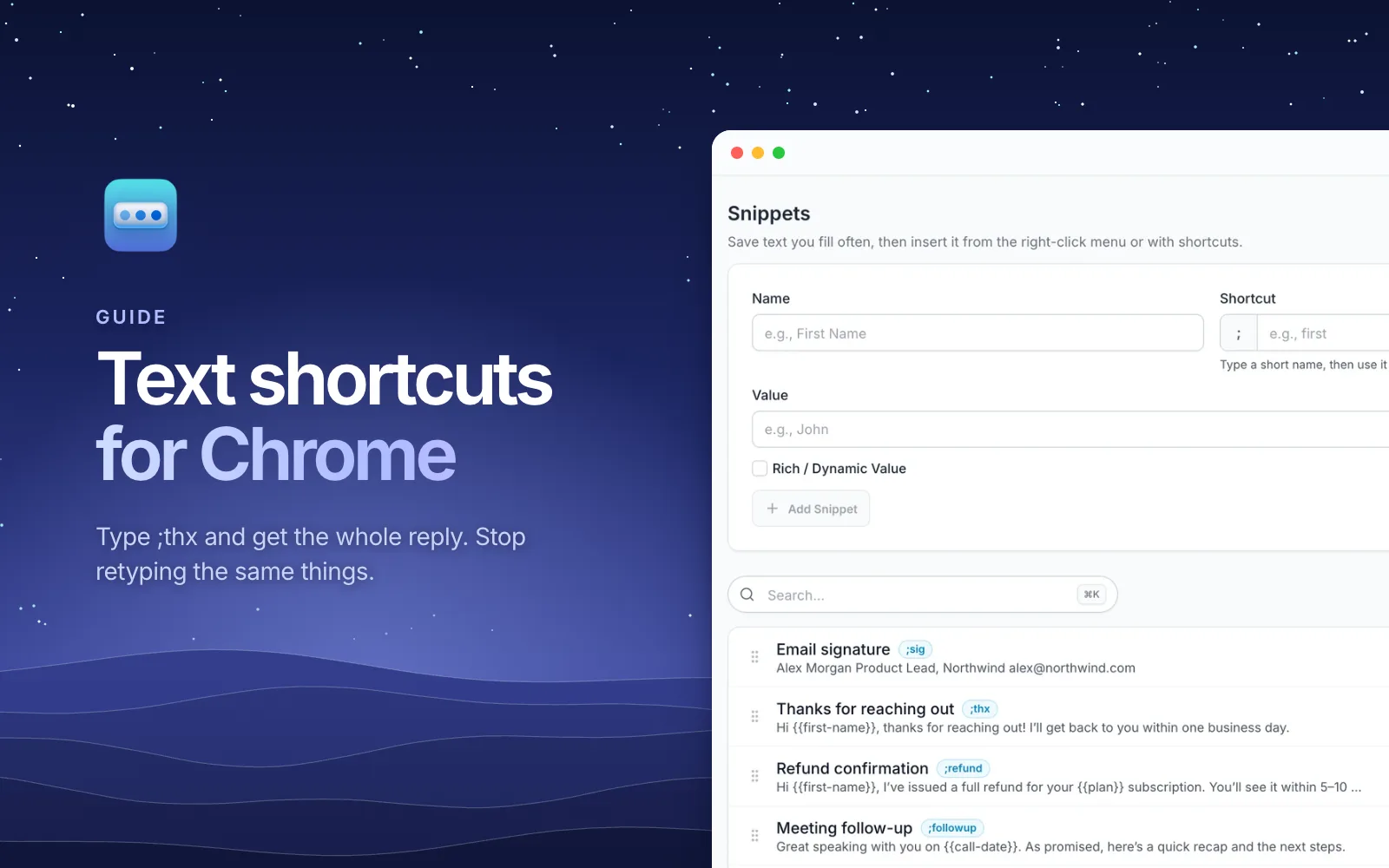
Count how many times today you'll type your email address. Then your phone number, your address, a meeting link, and "Thanks for reaching out, I'll get back to you within a day." For most people who work in a browser, it's dozens of times a day, and each one is a few seconds you'll never get back.
Those seconds add up. Say you write 15 messages a day that are mostly the same words, and each takes 40 seconds to type. That's 10 minutes a day, or about 40 hours over a working year: a full working week spent retyping things you've already written.
The fix is old and simple: text shortcuts. Type a few characters, and they turn into the full text. Here's how to set them up in Chrome, and how to get much more out of them than a typed phone number.
What your computer already has
Before reaching for an extension, it's worth knowing what's built in.
- Mac has text replacements under System Settings > Keyboard > Text Replacements. They're plain text only, with no formatting, no blanks to fill in, and no way to share them with a Windows PC.
- Windows has no general text shortcuts of its own. Microsoft Office's AutoCorrect works inside Office apps only.
- Chrome fills in your address and card at checkout, and nothing else.
So most people end up with a notes file of things to copy and paste. That works, but it's slow, and the formatting rarely survives the trip.
Text shortcuts with SimpleFill
SimpleFill is a browser extension for Chrome, Edge, Firefox, and Safari.
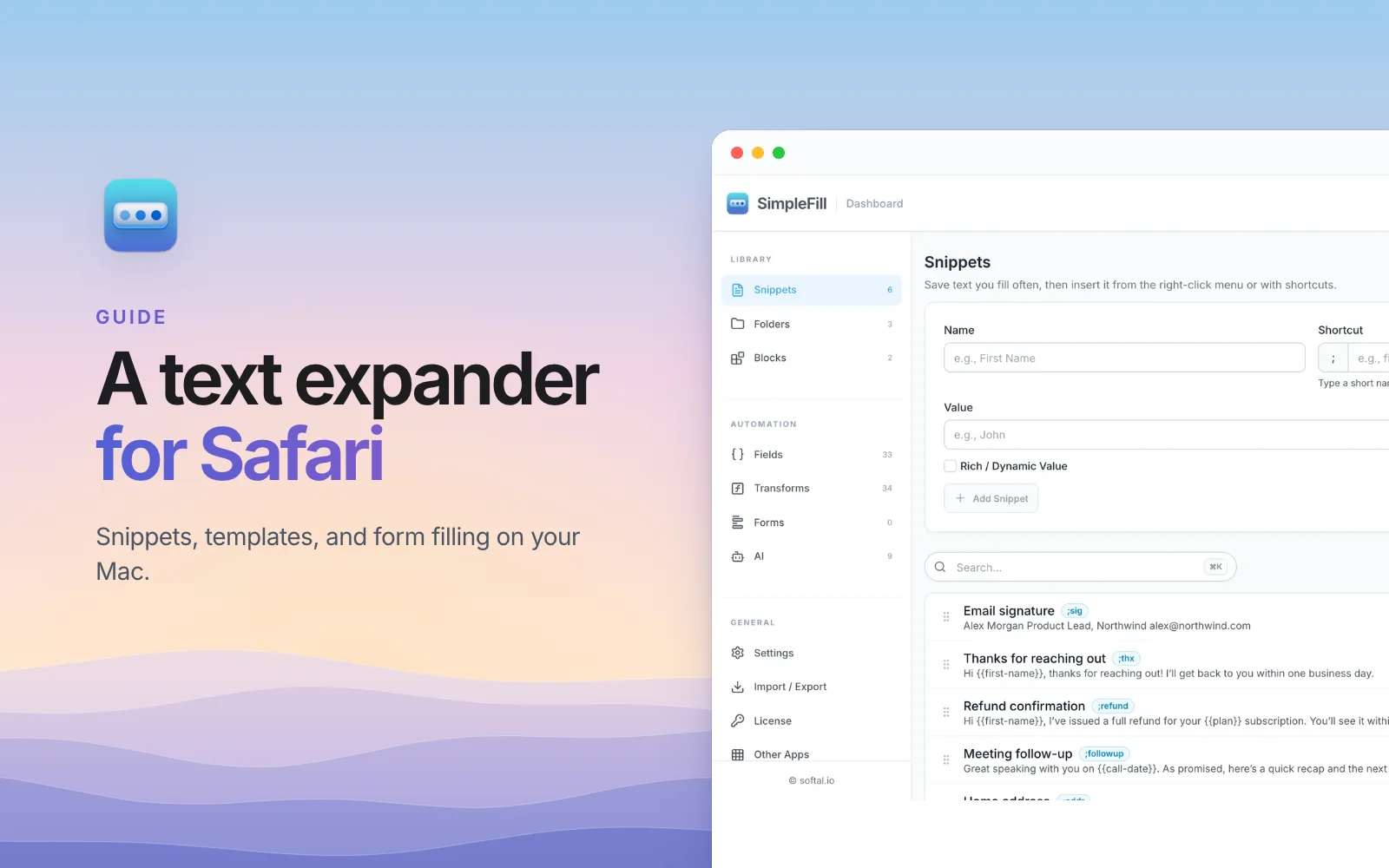
You save a piece of text once as a snippet and give it a shortcut. Then, in
any text box, type ; and the shortcut, press Space, and it's swapped for the
full text.
;sig       →  your full email signature
;addr      →  221 Baker Street, London NW1 6XE
;thx       →  Hi Sarah, thanks for reaching out! I'll get back to you within a day.
;zoom      →  your meeting link
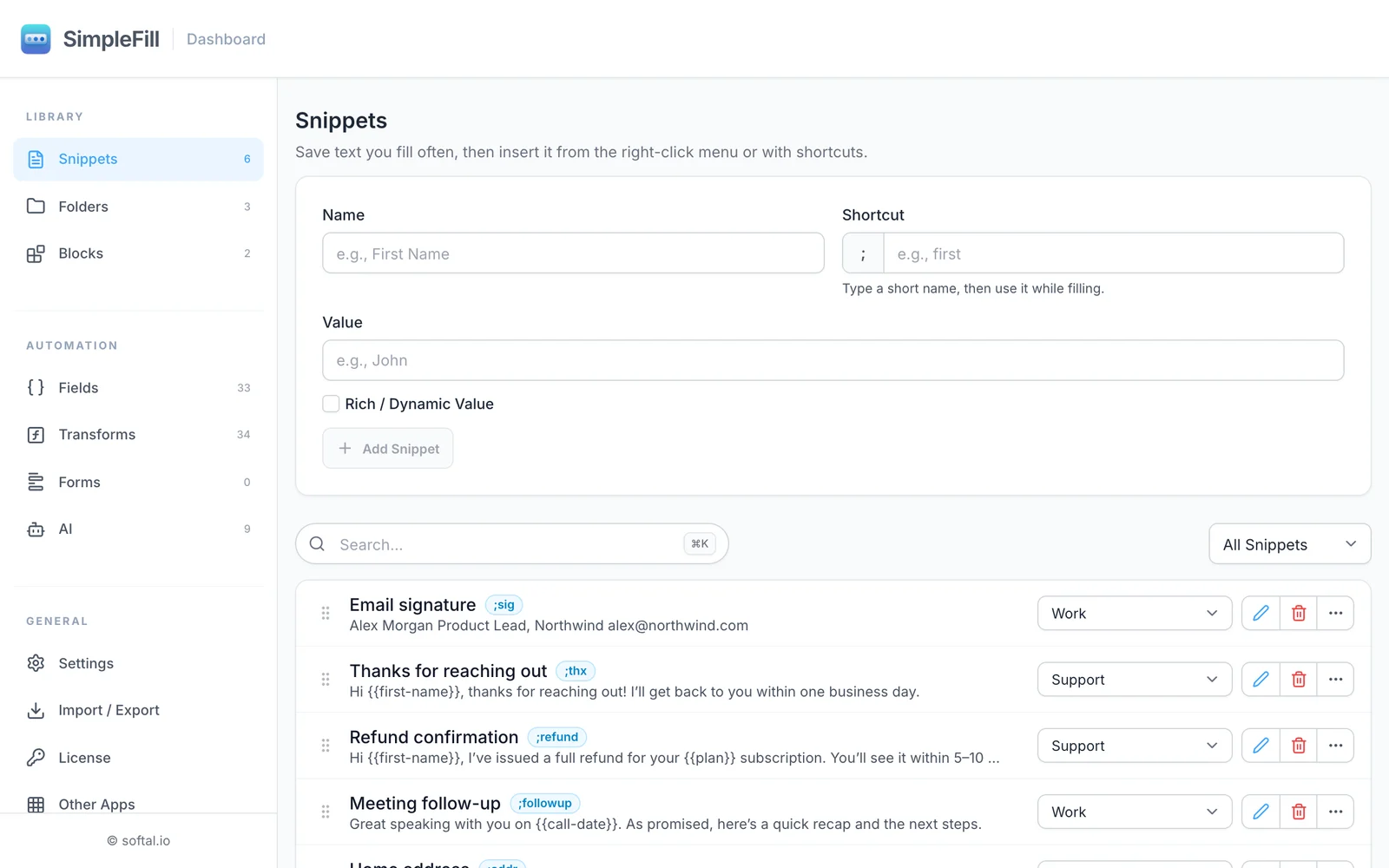
It works in plain text boxes and in rich editors like Gmail, Notion, Slack,
LinkedIn, and Google Docs. Can't remember a shortcut? As soon as you type ;
and a letter, a small list shows the snippets that match, and you pick one
with the arrow keys and Enter.
Ten snippets worth making today
Start small. These are the ones people reach for most:
| Shortcut | What it types |
|---|---|
;email | Your email address |
;phone | Your phone number |
;addr | Your home address, with ;addr.work for the office |
;sig | Your email signature, with your photo and links |
;zoom | Your meeting or booking link |
;thx | A thank-you reply |
;followup | A follow-up after a call |
;ooo | Your out-of-office note |
;bio | A short bio for forms and profiles |
;linkedin | Your LinkedIn profile link |
Pick shortcuts you'd never type by accident. The ; in front takes care of
most of that, and dots group related ones, like ;addr.home and ;addr.work.
Shortcuts that do more than paste
Once the basics are in, snippets can do a lot more than a copy-paste ever could.
Blanks that ask. Put a Field in a snippet, like the
customer's first name, and SimpleFill asks for it when you insert the snippet.
;thx becomes Hi Sarah, thanks for reaching out!, with the right name every
time.
Details that fill themselves. Smart Fields fill in
things like today's date, the page's title or link, or your clipboard. Type
;date on its own, and today's date goes in. Add
Transforms, like ;title|slugify, and the page's title
comes out as a URL-friendly slug.
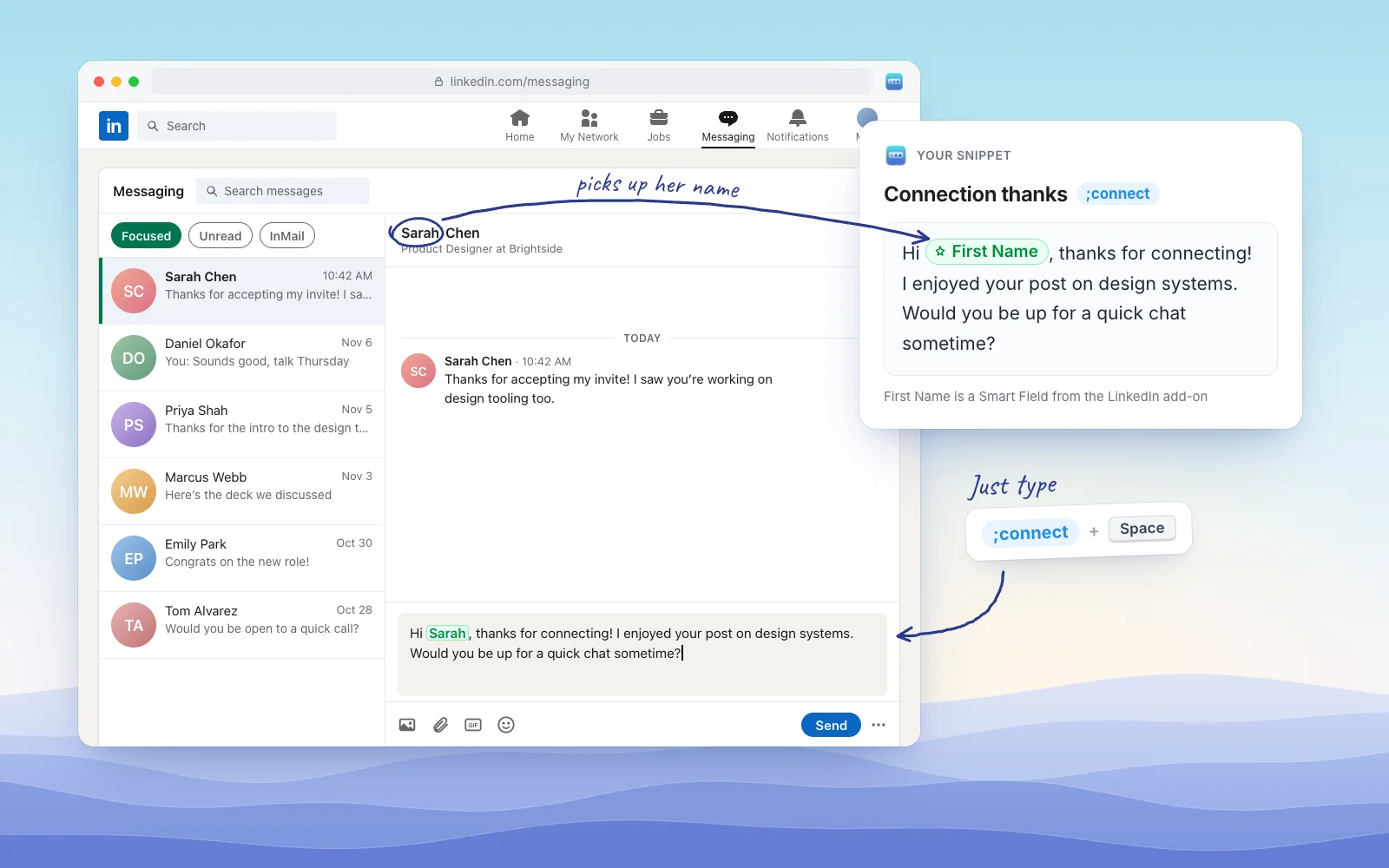
Names it reads from the page. With a Smart Field add-on,
you don't even type the name. Write Hi {{li.firstname}}, thanks for connecting!
once, and on LinkedIn the first name of the person you're messaging goes in by
itself, with nothing to ask. There are add-ons for HubSpot contacts, GitHub pull
requests, Jira issues, and more, and you can browse them all in the
marketplace.
Real formatting. A snippet can be rich, with headings, colors, links, images, and tables, built in a rich text editor. Your signature goes into Gmail with your photo and links intact. Our guide to email templates that keep their formatting goes deeper.
Shared pieces. Put your signature or address in a Block, and use it inside any number of snippets. Update the Block once, and they all change.
Keys and clicks. A snippet can press Tab and Enter, or click buttons, so one shortcut can fill a whole form and send it. See how to autofill forms in Chrome.
AI. Type ;fix after a message to fix its grammar, or ;pro to make it
sound more professional. That's covered in
how to use AI in any text box.
Not a fan of shortcuts? Three other ways in
Some snippets you use once a week, and their shortcut just won't stick. You don't need it:
- Quick Access. Press
⌘ Shift Space(Ctrl Shift Spaceon Windows), type a few letters of the snippet's name, and press Enter. It also puts the likeliest match for the field you're in at the top. - Suggestions as you type. In a form field, start typing, and matching snippets appear below it. Press Down and Enter. It's the fastest way through a long form.
- The right-click menu. Right-click any text box, and your snippets are under SimpleFill, sorted into your folders.
Private by default
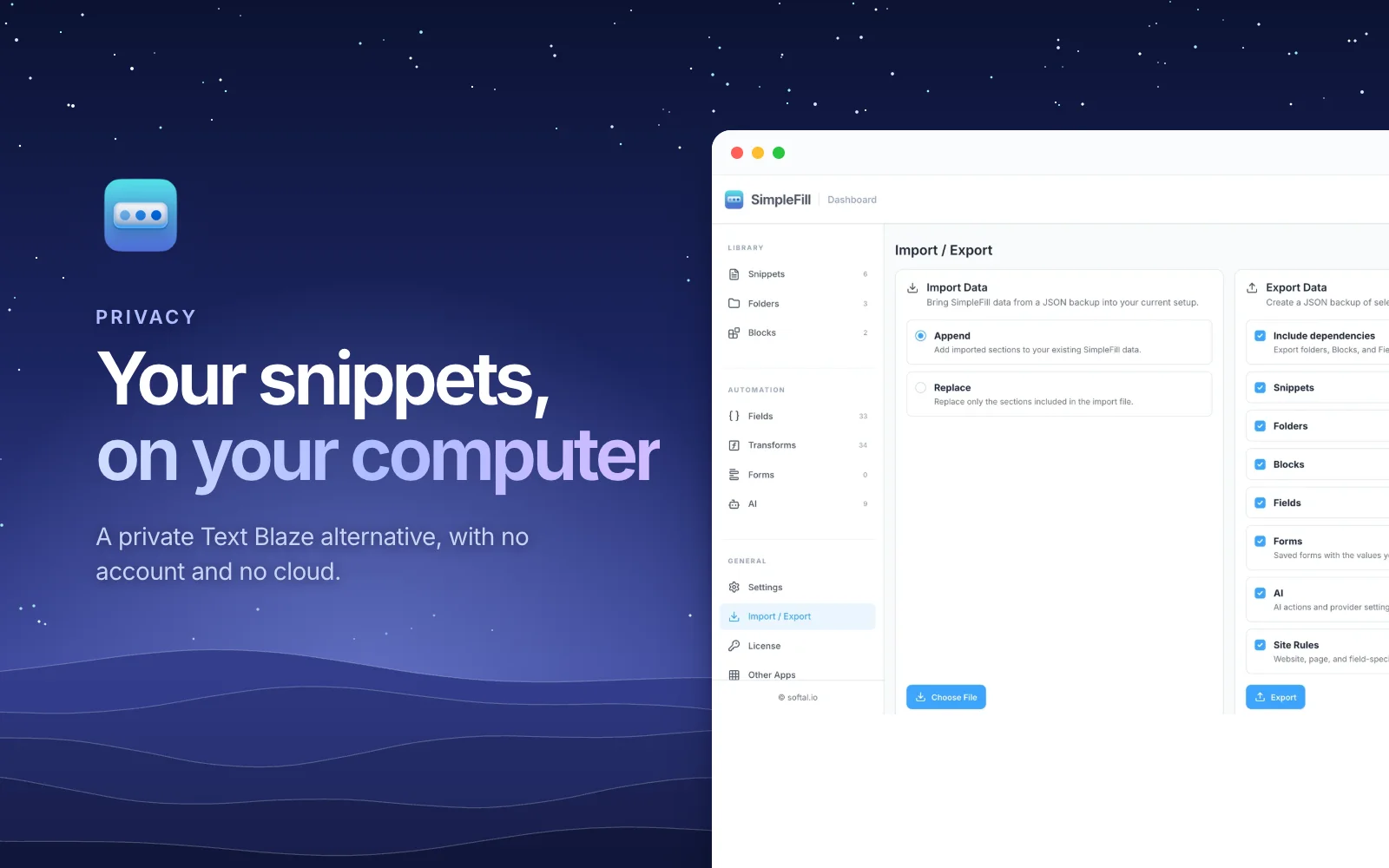
Snippets often hold addresses, phone numbers, and replies to customers. SimpleFill keeps them in your browser's storage, on your computer, with no account and nothing sent to us in the background. Export them to a file whenever you like, and import them on another computer. The privacy page lists every case where anything leaves your computer.
Get started
Install SimpleFill for Chrome, Edge, Firefox, or Safari. Make your first five snippets, the email, phone, address, signature, and one reply, and use them for a day. The Free plan covers exactly that, with every feature included, and the getting started guide walks you through it.
Already using another text expander? See how SimpleFill compares with Text Blaze, TextExpander, and Magical.