Guides5 min read
How to create email templates that keep their formatting
Copying replies from a doc breaks fonts and links, and Gmail's and Outlook's templates only work in their own app. Here's how to keep formatted email templates with fill-in blanks and one shared signature, and use them anywhere.
By Ram Patra
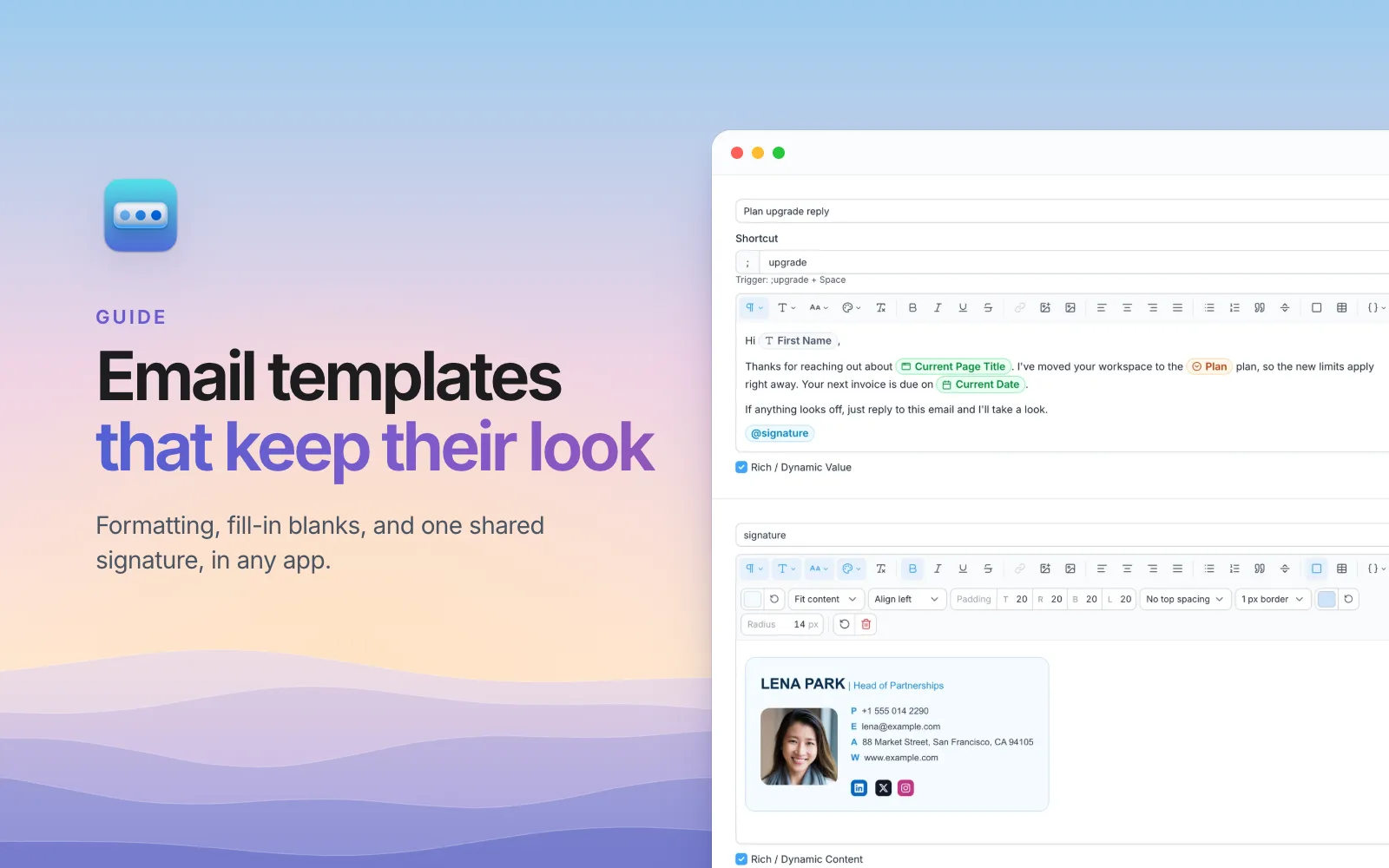
Most of us have a document somewhere called Replies or Templates. You open it, find the right paragraph, copy it, paste it into the email, then fix what the paste broke: a font that doesn't match the rest of the message, a link that lost its color, a gap that appeared out of nowhere. Then you change "Hi Sarah" to the right name, and hope you didn't miss the second "Sarah" further down.
There's a better way. This guide covers what Gmail and Outlook offer on their own, where they fall short, and how to keep one library of formatted templates that works in any email app, with blanks that fill themselves.
What Gmail and Outlook give you
Gmail has templates, but they're switched off by default. Turn them on under Settings > See all settings > Advanced > Templates, then save a draft as a template from the ⋮ menu while composing. To use one, open the same menu, choose Templates, and pick it.
Outlook has its own: My Templates in Outlook on the web, and Quick Parts in classic Outlook for Windows.
Both work, and both have the same limits:
- They live in one app. Gmail's templates don't exist in Outlook, in your help desk, in LinkedIn messages, or in a Slack reply. Write in three places, and you keep three libraries.
- They have no blanks. Every name, date, and detail is still yours to find and change by hand.
- They're slow to reach. A few clicks through a menu for every message adds up, and there's no shortcut to type.
- Nothing is shared between them. Change your phone number, and you edit every template that has your signature in it.
One template, every app
SimpleFill is a browser extension that keeps your templates, called snippets, in one place and puts them wherever you're typing: Gmail, Outlook on the web, Notion, Google Docs, LinkedIn, Slack, your help desk, or a plain contact form.
You write each one in a rich text editor with
headings, fonts, colors, links, lists, images, tables, and cards. Give it a
shortcut, like thx, and typing ;thx followed by a space in any text box
swaps in the whole template. In a rich editor like Gmail, the formatting comes
with it. In a plain text box, it goes in as clean text.
Not a fan of shortcuts? Right-click any text box and pick the template from the
SimpleFill menu, or press ⌘ Shift Space (Ctrl Shift Space on Windows)
and search for it.
Blanks that fill themselves
Here's a reply a support team might send many times a day:
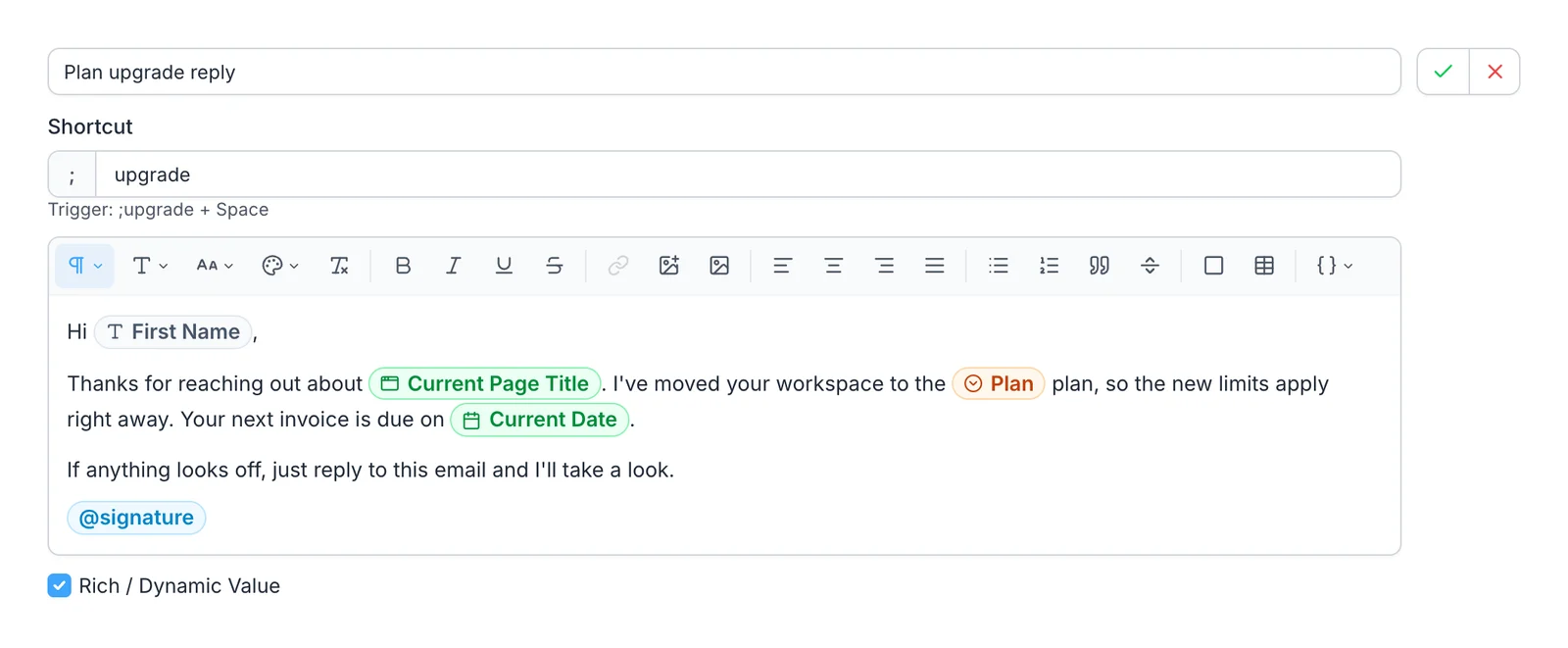
The colored pills are the parts that change:
- Fields ask you for what changes each time. When you insert the template, a small window shows the whole message with a box for the first name and a dropdown for the plan. Fill them in once, and every place that uses them is filled, even if the name appears twice.
- Smart Fields fill themselves in: today's date, the page's title or link, your clipboard, or what's already in the box.
- Transforms tidy a value on the way in, so a name
typed as
sarahgoes in asSarah, or a date comes out asFri, 13 Nov.
So the template remembers the parts that never change, and asks only for the parts that do.
One signature for every template
Your signature, your address, a legal footer, a booking link: these show up in
dozens of templates. In SimpleFill, they're Blocks. Build a
Block once, then type @ in any template to drop it in. Change the Block, and
every template that uses it changes too.
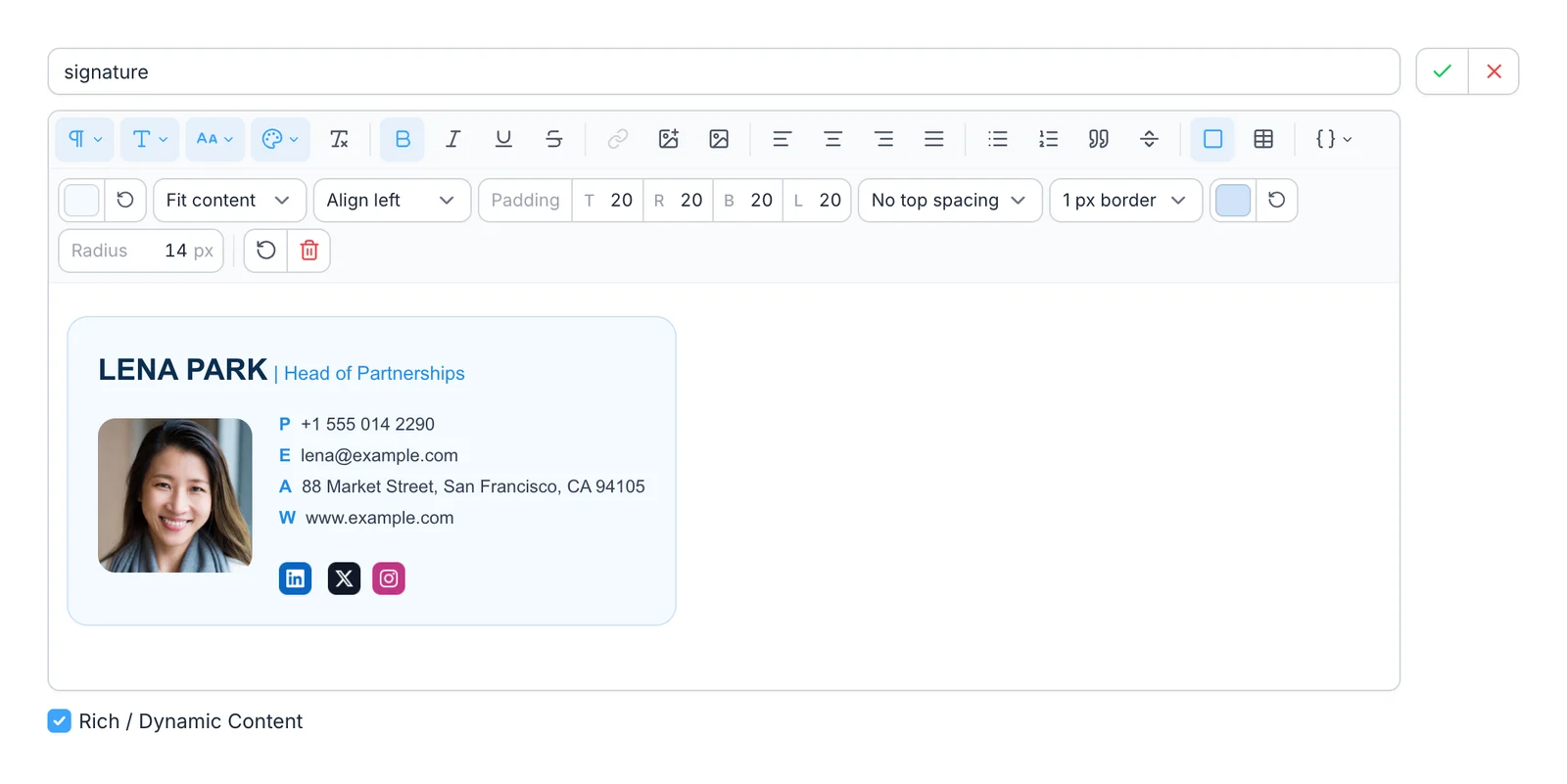
That signature, with a photo, social icons, and a card around it, was made in the editor with no HTML, and it keeps its look in Gmail, Outlook, Notion, and Google Docs.
A starter library
You don't need a hundred templates. Start with the five or six you write every week:
| Shortcut | Template | Its blanks |
|---|---|---|
;thx | Thanks for reaching out, I'll reply within a day | First name |
;followup | Great speaking with you, here's a recap | First name, call date |
;intro | Introducing two people to each other | Both names, why they should talk |
;refund | Your refund is on its way | First name, plan |
;ooo | Out of the office until a date | Return date |
;sig | Your signature on its own | None |
Group them in folders like Sales, Support, and Personal, so the right ones
are easy to find. And keep shortcuts short and grouped by topic, like
;addr.home and ;addr.work.
Start from a designed template
If you'd rather not start from a blank page, the SimpleFill marketplace has email signatures, replies, invoices, and résumés, ready to add in one click. They come in with their formatting and blanks set up, and you can change anything.
Your templates stay with you
Templates often hold customer replies, prices, and internal notes. SimpleFill keeps them in your browser's storage, on your computer, with no account and nothing sent to us in the background. Read more on the privacy page.
Get started
Install SimpleFill for Chrome,
Edge,
Firefox, or
Safari. Move your three most-used
replies out of that Replies doc, add your signature as a Block, and send your
next email with ;thx. The Free plan includes every feature.
More guides: text shortcuts for Chrome, how to autofill forms in Chrome, and AI in any text box with your own API key.