Guides5 min read
The best text expander for Firefox: snippets, templates, and form filling
The big text expanders are made for Chrome first. Here's a text expander built for Firefox too, with formatted snippets, fill-in blanks, one-click form filling, and AI, and no account or subscription.
By Ram Patra
If you use Firefox, you've probably noticed: the popular text expanders are made for Chrome first. Some send you to a Chrome extension, some to a desktop app, and some just don't mention Firefox at all.
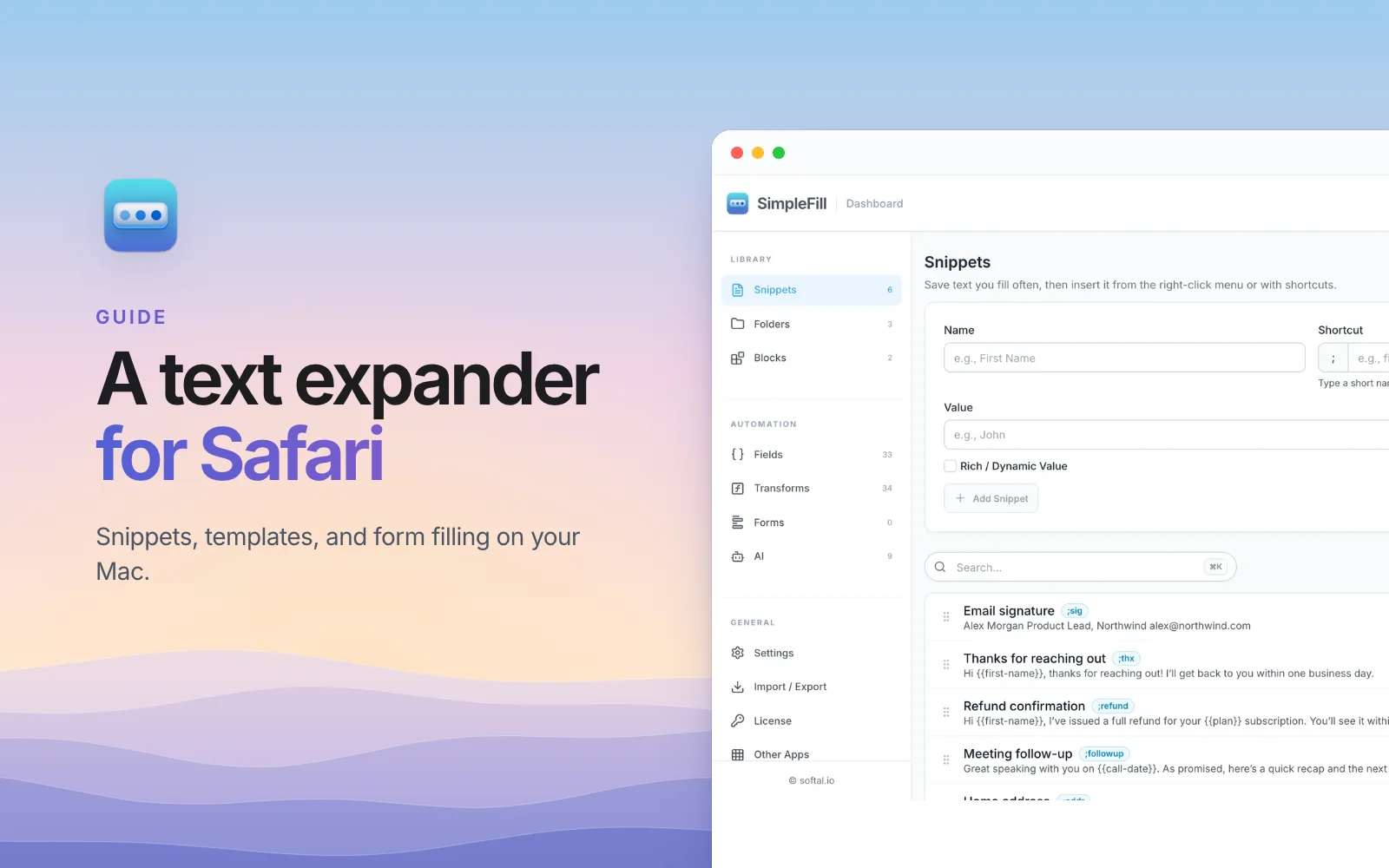
SimpleFill is a text expander that's on Firefox Add-ons, with the same features as on Chrome, Edge, and Safari. Here's what it does, how to set it up, and how it compares with the other options for Firefox.
What a text expander does
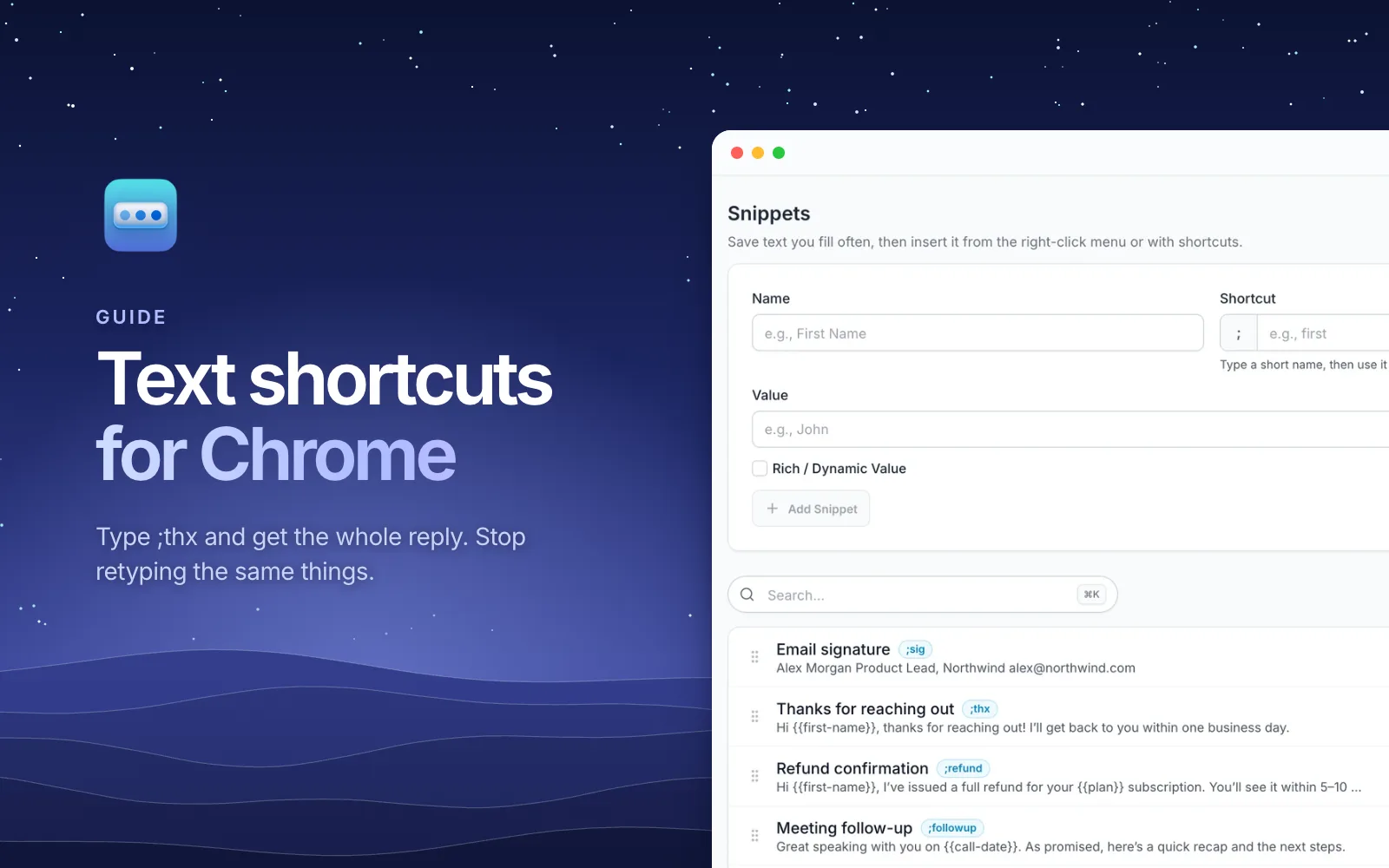
You save a piece of text once, as a snippet, and give it a short shortcut.
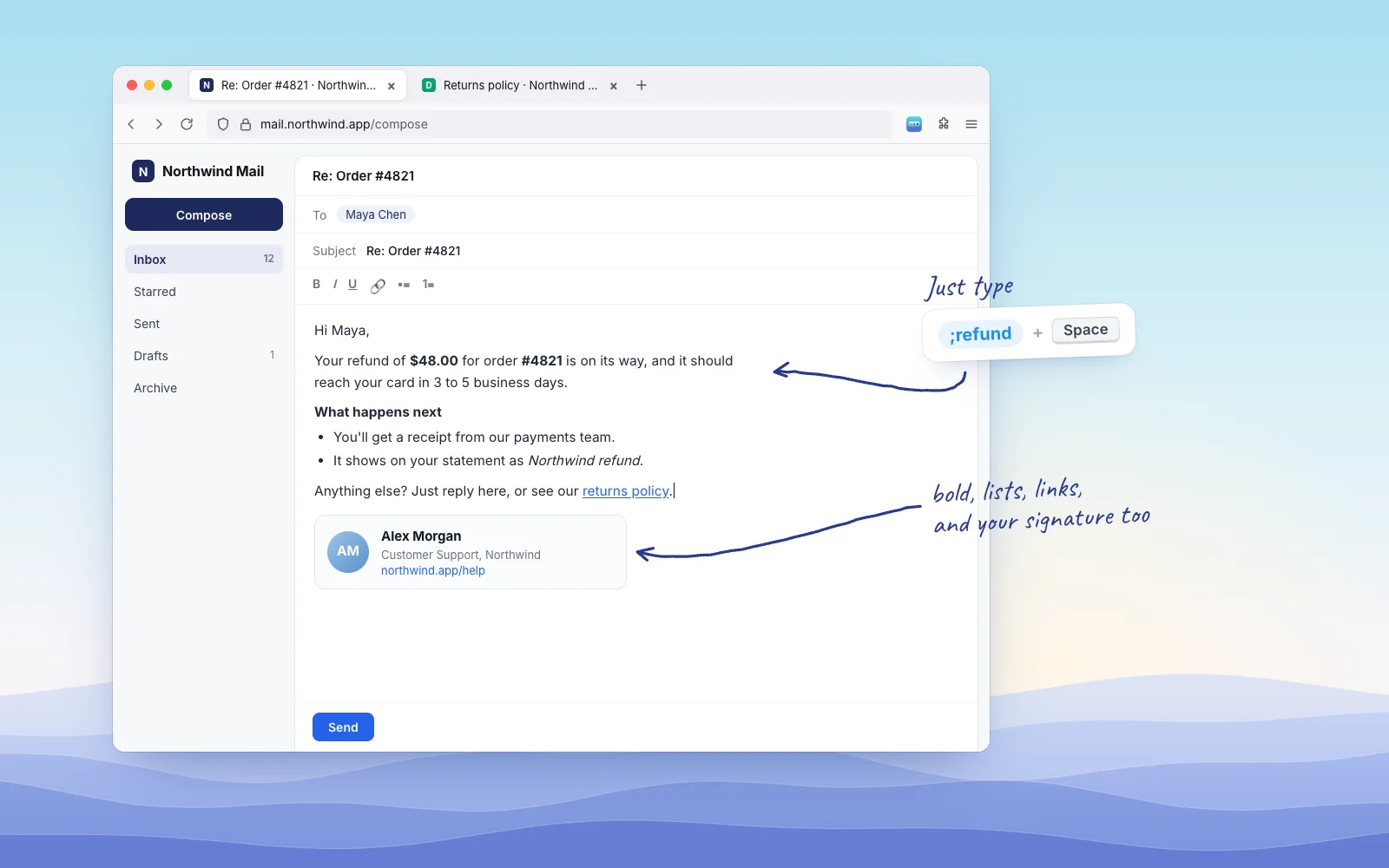
Then in any text box, you type ; and the shortcut, press Space, and the whole
thing appears.
;sig      →  your full email signature, with your photo and links
;addr     →  221 Baker Street, London NW1 6XE
;refund   →  a formatted refund reply, with the customer's name filled in
It works in Gmail, Outlook on the web, help desks, LinkedIn, Notion, Google Docs, and plain contact forms, anywhere you type in Firefox.
Set it up in Firefox
- Open SimpleFill on Firefox Add-ons and click Add to Firefox.
- Firefox asks for permission to access your data for all websites. SimpleFill needs it to type into text boxes on any site, and it keeps everything it saves on your computer (more on that below).
- Right-click any webpage and choose SimpleFill > Open Dashboard.
- Go to Snippets, give your first one a name, a shortcut like
sig, and its text, and click Add Snippet.
While you're at it, click the puzzle piece in the toolbar and pin SimpleFill. Clicking its icon opens Quick Access, a search box for everything you've saved.
Now type ;sig and a space in any text box.
Features worth knowing
Formatted snippets, not just plain text
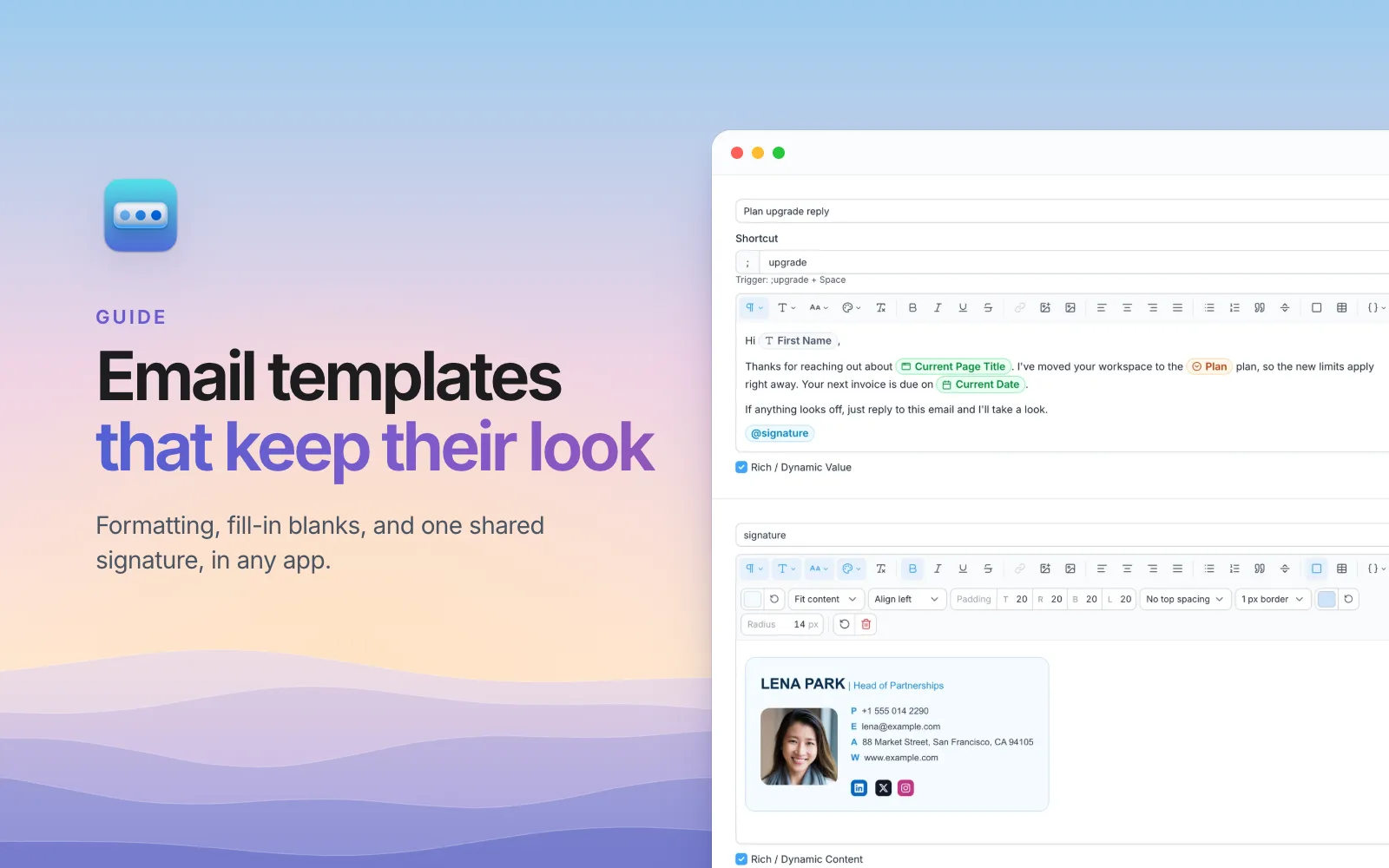
Snippets are written in a rich text editor, with headings, bold, colors, links, lists, images, tables, and cards. In a rich editor like Gmail, the formatting goes in with it. In a plain text box, it goes in as clean text.
Blanks that ask, and details that fill themselves
Add a Field, like the customer's first name or a dropdown of
plans, and SimpleFill asks for it when you insert the snippet. Add a
Smart Field, like {{date}} or {{page.title}}, and it
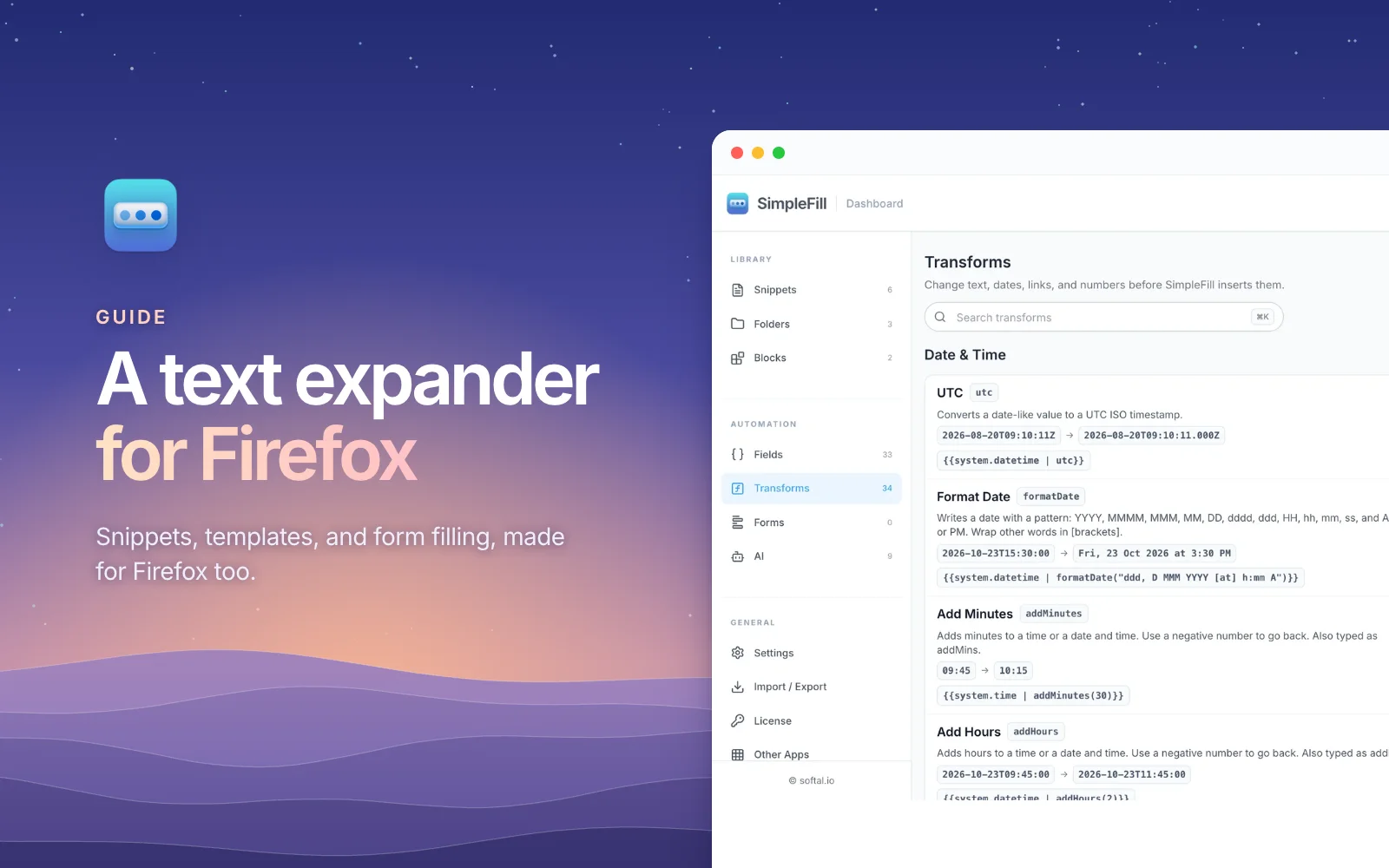
fills itself in. Transforms tidy values on the way in:
{{date | addBusinessDays(5)}} gives the date five working days from now.
One-click form filling
Fill a form once, right-click the page, and choose SimpleFill > One-Click Fill > Save Form. Next time, one click fills every field: text, dropdowns, checkboxes, radio buttons, and dates, including calendar pickers. Our guide to autofilling forms covers it in detail, and it works the same in Firefox.
AI where you write
Type ;fix after a message to fix its grammar, or ;pro to make it sound more
professional. AI actions use your own OpenAI or Anthropic
key, or a free model running on your own computer. See
how to use AI in any text box.
Three ways in, besides shortcuts
- Quick Access: press
⌘ Shift Spaceon a Mac orCtrl Shift Spaceon Windows and Linux, and search all your snippets. - Right-click: your snippets are under SimpleFill in the menu, sorted into folders.
- Suggestions: in a form field, start typing and matching snippets appear below it.
Private by default
Firefox users tend to care where their data goes, and SimpleFill is built for that. There's no account. Your snippets, Blocks, Fields, saved forms, and AI actions are stored in Firefox's extension storage, on your computer, and SimpleFill doesn't send anything in the background.
Only your settings, like your trigger character, use Firefox's sync storage, so with Firefox Sync turned on, they follow you to your other computers. Your snippets stay put. To use them on another computer, export them to a file and import them there. The privacy page lists every case where anything leaves your computer.
Other text expanders for Firefox
The two best-known text expanders don't have Firefox add-ons. Text Blaze is made for Chrome and Chromium browsers, and suggests its Windows or Mac desktop app for Firefox users. TextExpander's only browser extension is for Chrome; its desktop apps work in Firefox, and need an account. Watch out for Firefox add-ons that borrow either name: the ones listed under "Text Blaze" and "TextExpander" on Firefox Add-ons aren't from those companies.
Here's what you'll find on Firefox Add-ons today:
| Add-on | What it does | Last updated |
|---|---|---|
| SimpleFill | Shortcuts, rich templates, Fields, form filling, and AI | November 2026 |
| Clippings | Saved text you paste from a menu or hotkey | August 2026 |
| Lightning Autofill | Form autofill rules, plus short text expansion | November 2025 |
| Web Text Expander | Simple typed shortcuts | November 2026 |
| Auto Text Expander | Simple typed shortcuts | June 2019 |
Clippings is a long-running, well-liked add-on for pasting saved text, but you pick clippings from the right-click menu or a hotkey rather than typing a shortcut. Lightning Autofill is built around autofill rules for forms. If you want typed shortcuts, formatted templates, and form filling in one add-on, SimpleFill covers all three.
Outside the browser, Espanso is a free, open source desktop app that expands text in every app on Windows, Mac, and Linux, Firefox included. It's set up through config files rather than an app. For more options that don't need a subscription, see text expanders with no subscription.
What it costs
The Free plan includes every feature, with room for five of each: snippets, Blocks, Fields, and saved forms. Standard ($29) and Pro ($59) are one-time purchases, not subscriptions, and one license key works in up to three browsers, so Firefox at home and Chrome at work share one purchase. See plans.
Get started
Add SimpleFill to Firefox, save your signature and your two most-typed replies, and use them for a day. The getting started guide walks you through the rest.