Guides6 min read
How to autofill forms in Chrome, dropdowns and dates included
Chrome's autofill knows your address and your card, and not much else. Here's how to fill the forms you repeat, like timesheets, job portals, and test sign-ups, in one click, with dropdowns, checkboxes, and calendar dates filled too.
By Ram Patra
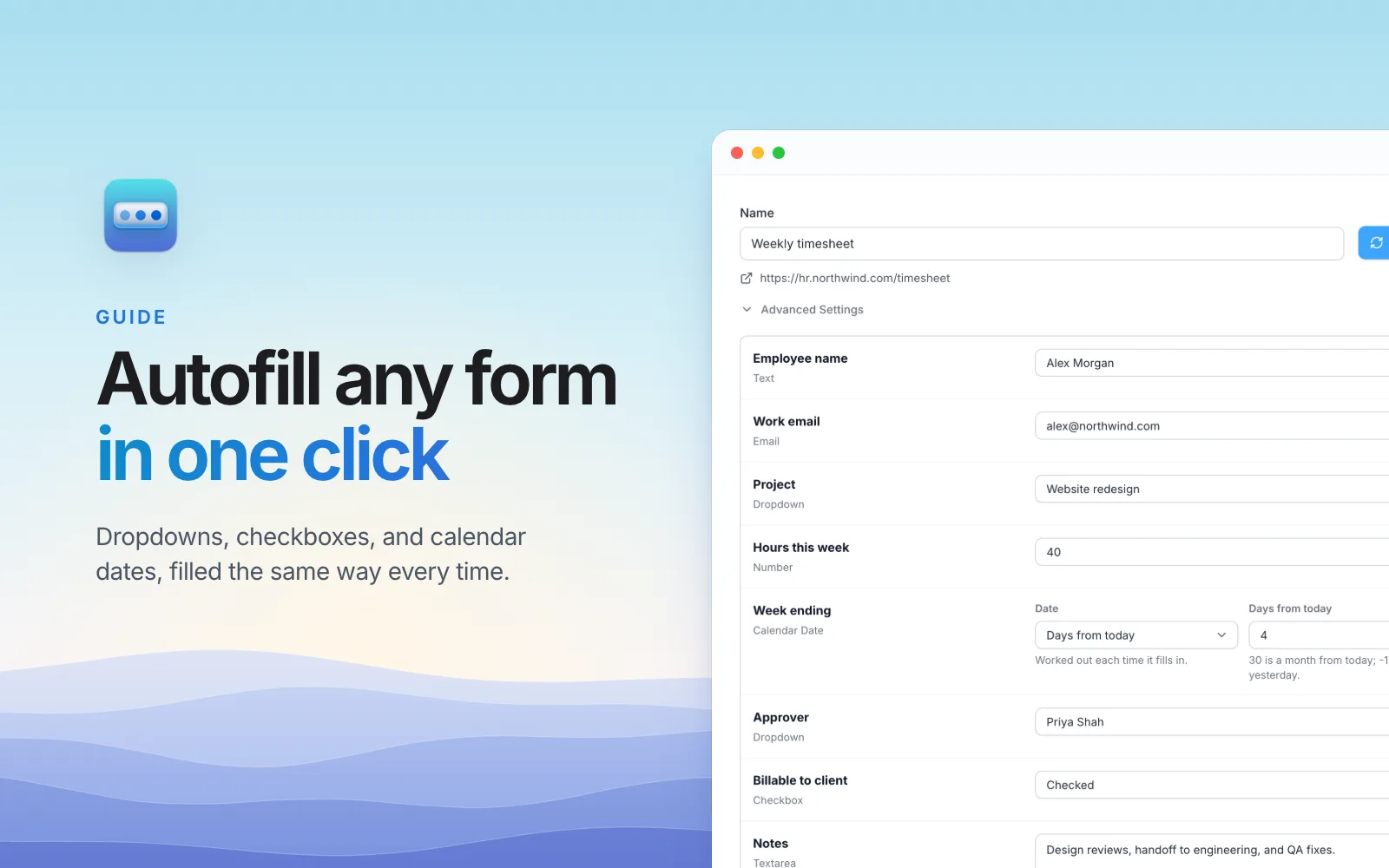
It's Friday afternoon, and the timesheet is waiting. Same name, same email, same project from the dropdown, 40 hours, the week-ending date from a little calendar, the same approver, the Billable box ticked. You've filled this exact form fifty times, and Chrome still offers you nothing more than your email address.
If that sounds familiar, this guide is for you. We'll look at why Chrome's autofill stops short, then at three ways to fill a form you repeat, from one click for the whole form to a single shortcut that fills it and presses Submit.
Why Chrome's autofill stops short
Chrome's built-in autofill is made for a few kinds of details: addresses, payment cards, and passwords. It guesses each field from its name, so it's great at Postcode and Card number and has nothing to say about:
- Your own answers. Your project code, your manager's name, the answer to How did you hear about us?
- Dropdowns and checkboxes. Especially the custom ones many sites draw themselves instead of using the browser's own.
- Dates. A box that opens a calendar wants clicks on the right month and day, and the right day changes every week.
- More than one version. Your home and office address on the same checkout, or a work and a personal profile.
That's the gap SimpleFill fills. It's a browser extension for Chrome, Edge, Firefox, and Safari, and it has three ways to deal with a form, depending on how often you see it.
Way 1: save the whole form, fill it in one click
For forms you fill again and again, save the answers once.
- Open the form and fill it in the way you like, or leave it empty.
- Right-click the page and choose SimpleFill > One-Click Fill > Save Form.
- SimpleFill scans the page and lists every field it found, with what each one holds now. Set the values you want: type text, pick dropdown options, set checkboxes to Checked or Unchecked, and choose dates.
- Give the form a name, like
Weekly timesheet, and click Save form.
Here's that Friday timesheet, saved:
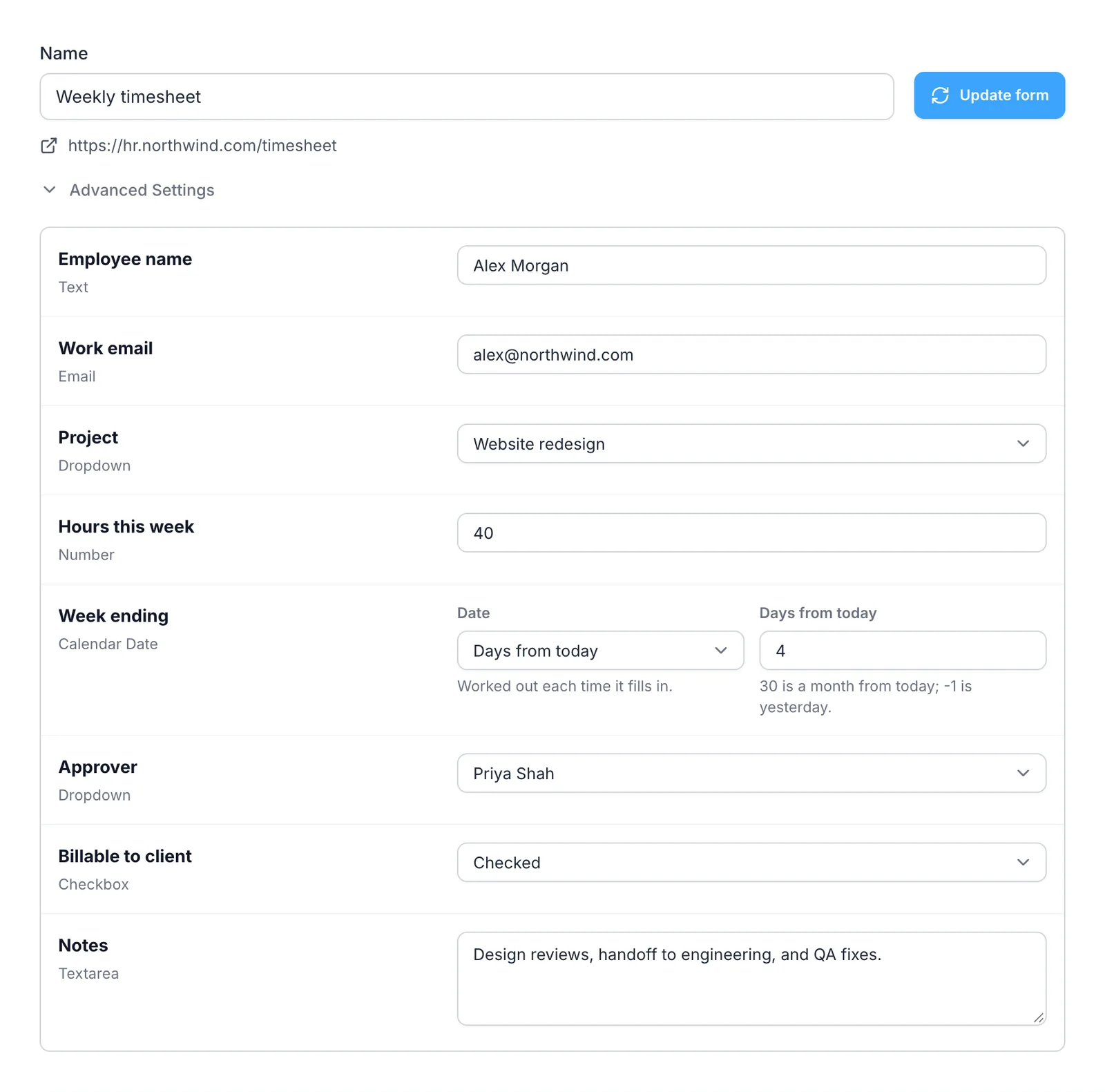
Next Friday, right-click the page and choose SimpleFill > One-Click Fill > Weekly timesheet. Every field fills in at once. SimpleFill doesn't press Submit for you, so you can glance over it first.
It saves text boxes, text areas, dropdowns, radio buttons, checkboxes, multi-select lists, and dates. It never saves password fields, and it skips hidden fields and file uploads.
Dates that keep up
A saved date doesn't have to be a fixed date. For each date field, choose:
- A date: the same one every time, like a date of birth.
- Today: for Date submitted or Date of visit.
- Days from today:
4for this Friday when you fill on Monday,30for a month from now,-1for yesterday.
This works for the browser's own date boxes and for the calendar pickers sites draw themselves. For those, SimpleFill opens the calendar, moves it to the right month, and clicks the day, just as you would. It even fills the calendars after the other fields, so a Start date that has to come before an End date doesn't get stuck.
Keep more than one version
Save the same form twice with different values, like Shipping: Home and
Shipping: Office, or Work profile and Personal profile. Both show up in
the right-click menu on that page, and you pick one each time.
Way 2: a snippet that fills the form and sends it
Some forms need more than values. They span several steps, or you'd like the whole thing done, Submit included. For those, write a snippet that types for you and presses keys along the way:
Alex Morgan {{tab}} alex@northwind.com {{tab}} {{arrowdown}} {{tab}} {{space}} {{enter}}
Type its shortcut in the first field, say ;signup, and SimpleFill types the
name, presses Tab, types the email, picks the next option in a dropdown, ticks
a checkbox with Space, and sends the form with Enter. There are
key presses for Tab, Shift+Tab, Enter, Space, Escape, and
the arrow keys, and each can wait a moment for a page to load the next step.
Many sites build their own dropdowns, switches, and buttons that ignore the keyboard. For those, add a Click: you point at the element once, like Choose a country and then India, and the snippet clicks it every time. A snippet can mix typing, key presses, and clicks, so one shortcut can walk through a three-page application.
This is also handy for testing. Developers and QA teams keep a snippet per test account and fill a sign-up form the same way every run.
Way 3: fill one field at a time, as you type
Then there are forms you only see once: a webinar sign-up, a new supplier portal, a one-off application. Saving them isn't worth it.
That's what auto-suggestions are for. Click in a field and start typing, and SimpleFill lists your snippets that match. Press Down and Enter, and it fills the field and moves to the next one. Your name, email, phone, company, website, and LinkedIn link go in without touching the mouse: type, Down, Enter, next field.
Which one should you use?
| The form | Use |
|---|---|
| The same form, the same answers, every week | A saved form, one click |
| The same form with two sets of answers | Two saved forms, pick one |
| Several steps, or you want it sent too | A snippet with key presses and clicks |
| A form you'll only fill once | Auto-suggestions, field by field |
| A field that wants a long answer, like a cover letter | A snippet with a shortcut |
Try it on a practice form
We built a practice contact form with text boxes, a dropdown, a checkbox, and a calendar date picker. Install SimpleFill, save that form, change a value or two, and fill it again in one click. It takes about two minutes.
Your answers stay on your computer
Saved forms often hold personal details, so it matters where they live. SimpleFill keeps everything in your browser's storage, on your computer. There's no account, and nothing is sent to us in the background. The privacy page lists every case where anything leaves your computer.
Get started
Install SimpleFill for Chrome, Edge, Firefox, or Safari. The Free plan saves five forms and five snippets with every feature included, which is plenty to fix your Friday. The full walkthrough is in the one-click form fill docs.
More guides: text shortcuts for Chrome, email templates that keep their formatting, and AI in any text box with your own API key.