Guides4 min read
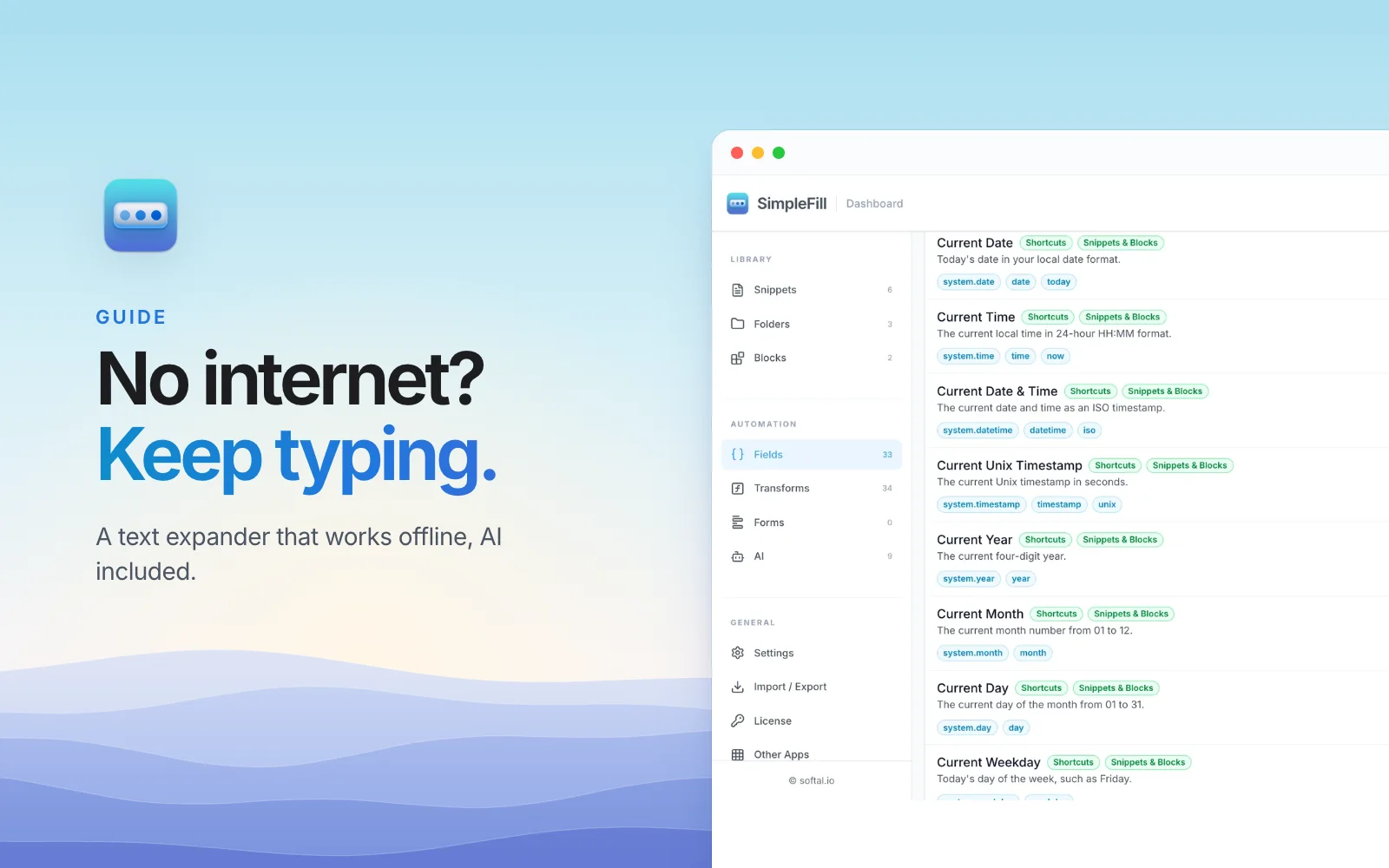
A text expander that works offline, AI included
On a plane, on bad hotel Wi-Fi, or on a network that blocks cloud apps, your snippets should still work. Here's how SimpleFill keeps text shortcuts, templates, form filling, and even AI working with no internet.
By Ram Patra
Your train goes into a tunnel halfway through a support reply. The hotel Wi-Fi
drops every ten minutes. Your company's network blocks anything that looks like
a cloud app. None of that should stop ;thx from typing your reply.
Most text expanders today are cloud services first: you sign in, your snippets live on their servers, and the app on your computer keeps a copy. That copy usually keeps working for a while without a connection, but anything new, changed, or shared waits for the internet to come back.
SimpleFill works the other way around. There's no server holding your snippets, so there's nothing to lose touch with.
Why SimpleFill doesn't need the internet
SimpleFill is a browser extension for Chrome, Edge, Firefox, and Safari. Your snippets, folders, Blocks, Fields, saved forms, and AI actions are stored in your browser's own extension storage, on your computer. There's no account and no sync service in between.
So with no connection at all, all of this keeps working:
| Works offline | |
|---|---|
Typing a shortcut, like ;sig, to insert a snippet | |
| Rich snippets with formatting, tables, and images | |
| Fields that ask for a name or a date | |
| Smart Fields like today's date or the page title | |
Transforms like uppercase or formatDate | |
| Saving a form and filling it in one click | |
| Quick Access and the right-click menu | |
| Creating and editing snippets in the dashboard | |
| AI actions with a local model | |
| AI actions with OpenAI or Anthropic | |
| Adding templates from the marketplace |
The last two need the internet for an obvious reason: they talk to someone else's server.
Details that fill themselves, offline too
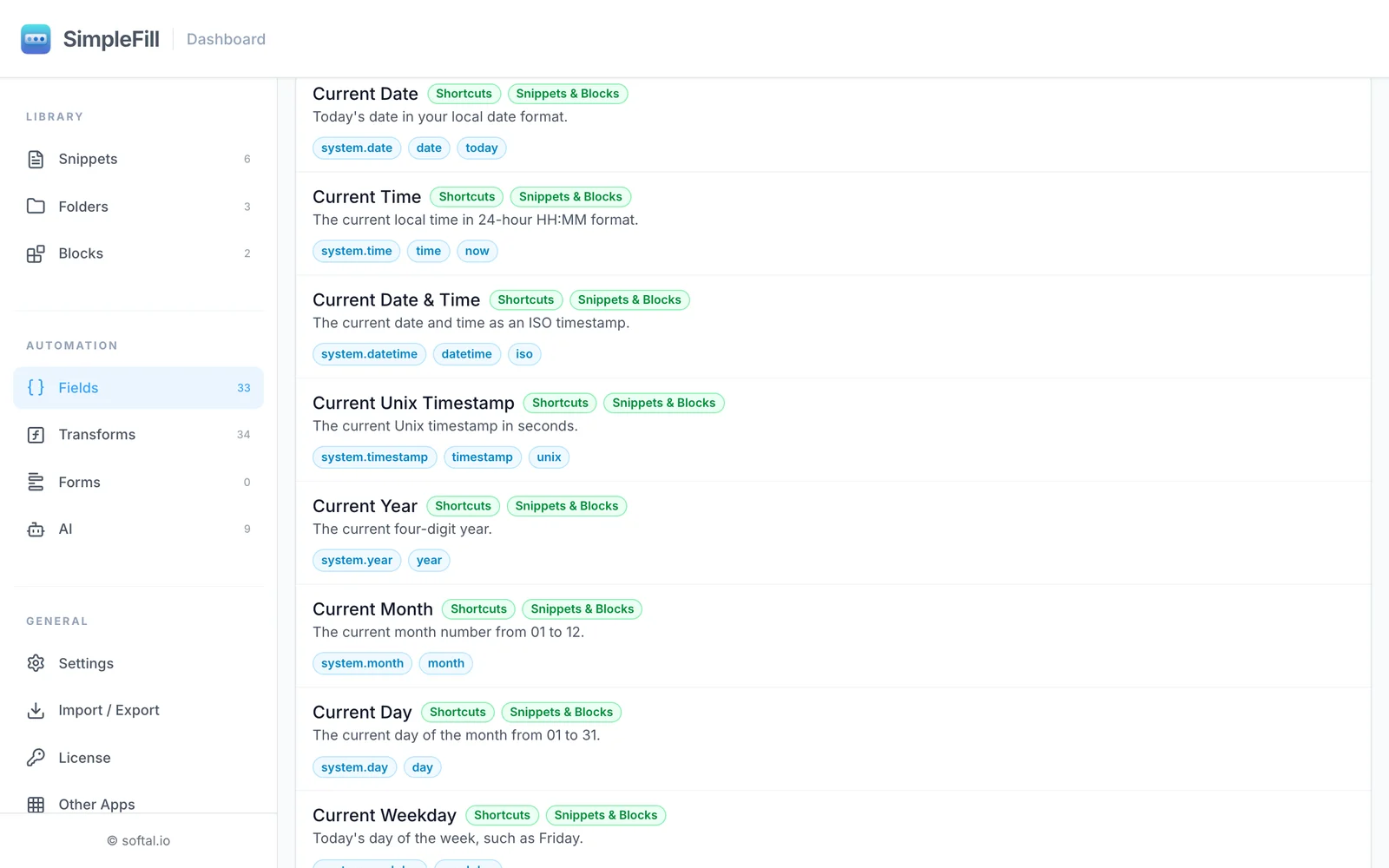
Smart Fields read their values from your computer or the
page in front of you, never from a server. {{date}} asks your computer's
clock, {{page.title}} reads the page you're on, and {{clipboard}} reads what
you copied. A snippet like this works the same at 30,000 feet as it does at your
desk:
Hi {{first-name}}, notes from today ({{date | formatDate("ddd, D MMM")}}):
AI with no internet, on your own computer
AI is the one feature you'd expect to need a connection. With SimpleFill, it doesn't have to.
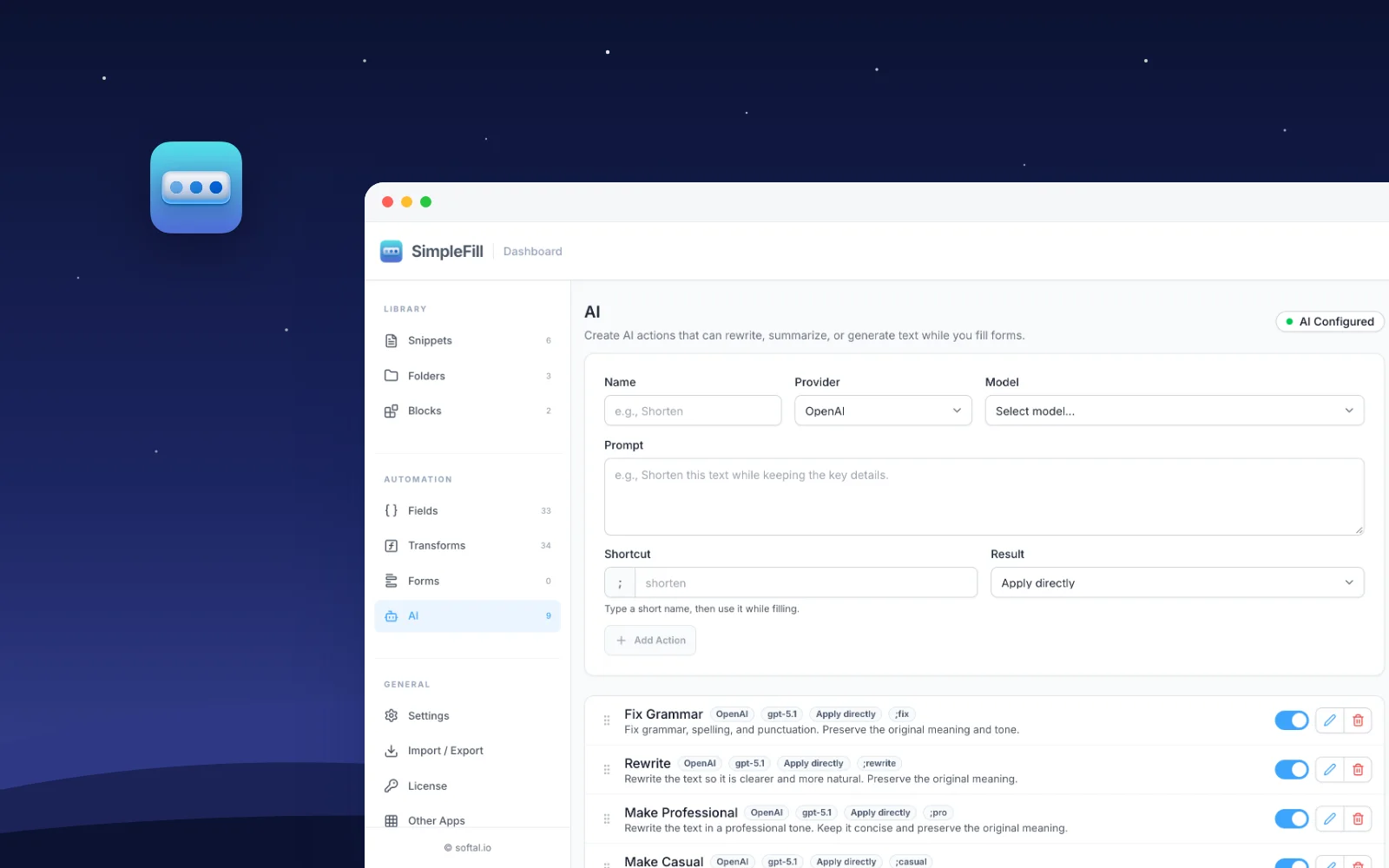
SimpleFill's AI actions, like ;fix for grammar or ;pro
to sound more professional, work with a model running on your own computer
through Ollama or LM Studio.
Download a model once while you're online, and from then on your text goes to
your own computer and nowhere else.
- Install LM Studio or Ollama, and download a model.
- In SimpleFill, open Settings > AI, edit Local, and set the
Base URL:
http://localhost:1234/v1for LM Studio, orhttp://localhost:11434/v1for Ollama. - Click Fetch Models, and pick one for your actions.
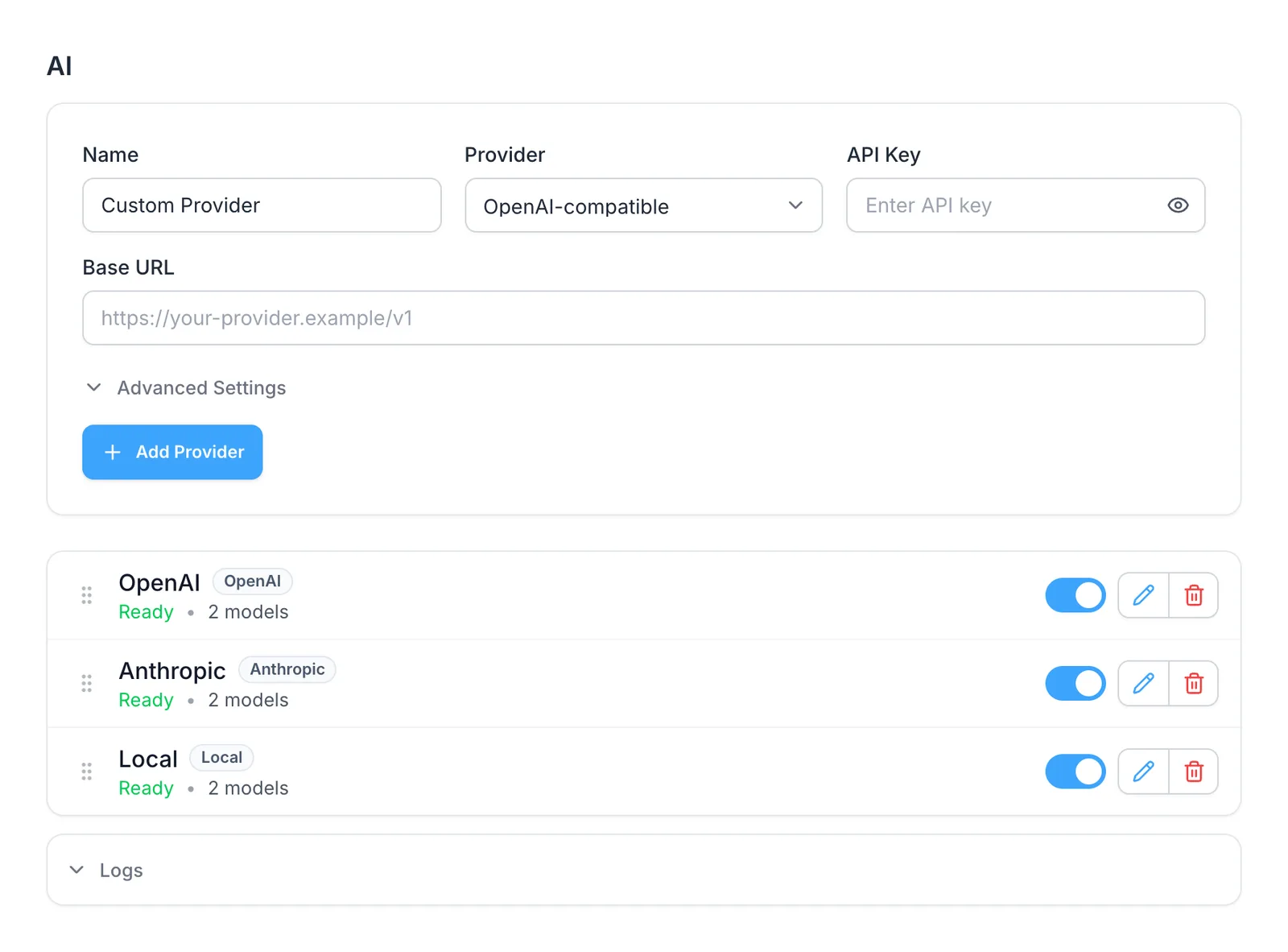
Ollama needs one extra setting before it talks to browser extensions. The local model docs show how to set it.
A small local model is slower and less clever than the big cloud ones, but for fixing grammar, tidying a paragraph, or turning notes into bullet points, it's often all you need. And it costs nothing per request.
What does need a connection
To be clear about the exceptions:
- Activating a license. Paste your key once while you're online. After that, your plan keeps working offline, and if SimpleFill can't reach the license server when it checks, it simply keeps your plan as it is.
- Cloud AI. OpenAI, Anthropic, and other cloud providers need the internet, of course.
- The marketplace. Adding a template downloads it, so that needs a connection too. Once it's added, it's yours, offline included.
- Images by link. An image you pasted into a snippet as a web address loads from that address. Images you uploaded are stored with the snippet.
Offline also means private
A text expander that works without the internet is also one that doesn't send your snippets anywhere. Your replies, addresses, and customer notes stay in your browser, and SimpleFill doesn't send anything in the background. The privacy page lists every case where anything leaves your computer, and to whom.
The flip side: your library lives in one browser. To move it, or keep a backup, export it to a file and import it on the other side.
Get started
Install SimpleFill for Chrome, Edge, Firefox, or Safari. Save your five most-typed snippets, then turn off your Wi-Fi and try them. The Free plan includes every feature, and paid plans are a one-time purchase, not a subscription.
More guides: text shortcuts for Chrome and AI in any text box with your own API key.