Product6 min read
What's new in SimpleFill 4
Rich text snippets, Fields and Smart Fields, AI actions, Quick Access, one-click form fill, and a template marketplace. Here's everything that changed, and why.
By Ram Patra, updated
SimpleFill started as a way to stop retyping your name and email into forms. Over the years, the most common request we got wasn't about forms at all. People wanted to save replies, signatures, and templates, and use them everywhere they write, not only in form fields.
SimpleFill 4 is built around that. Here's what's new.
Snippets, with real formatting
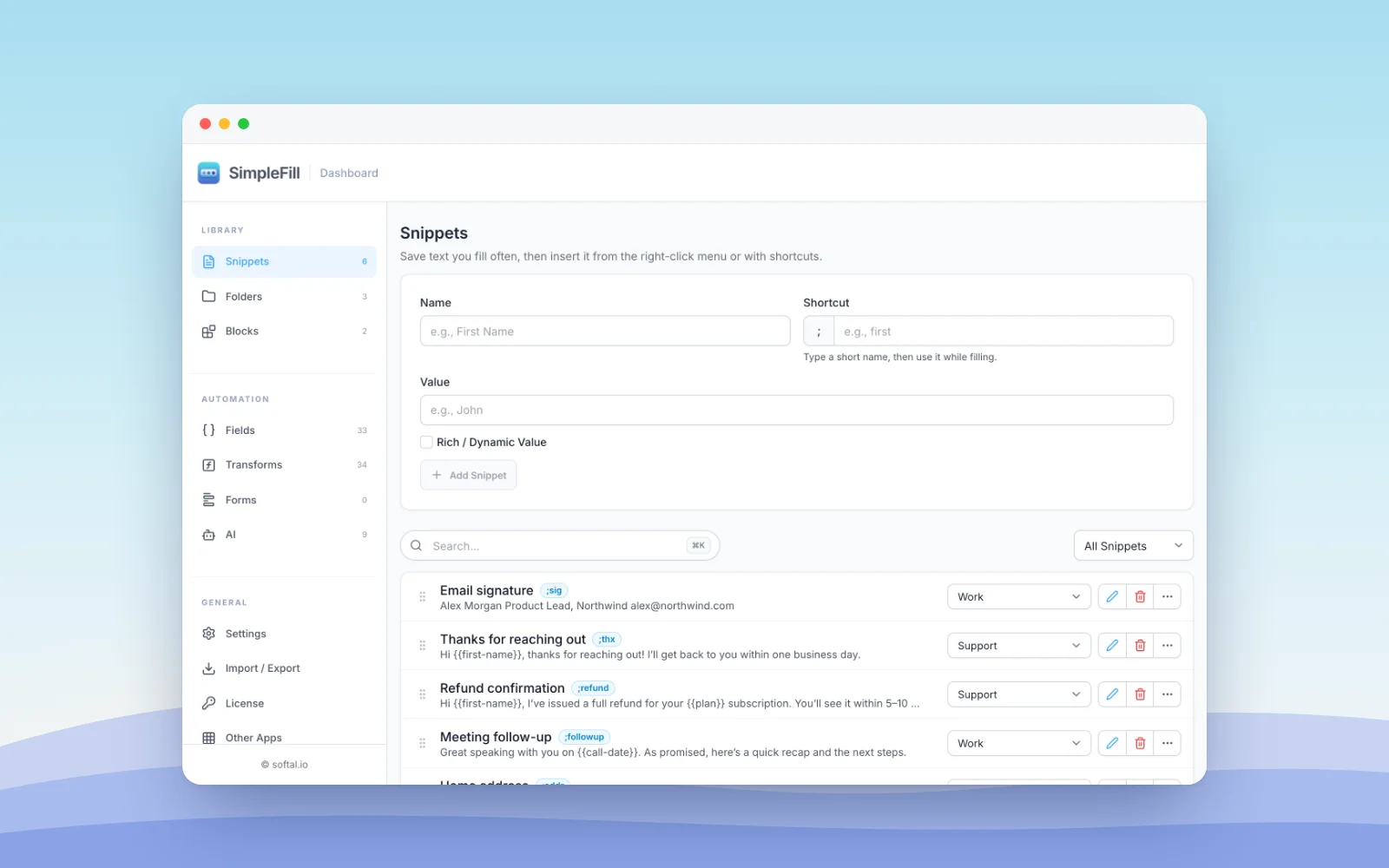
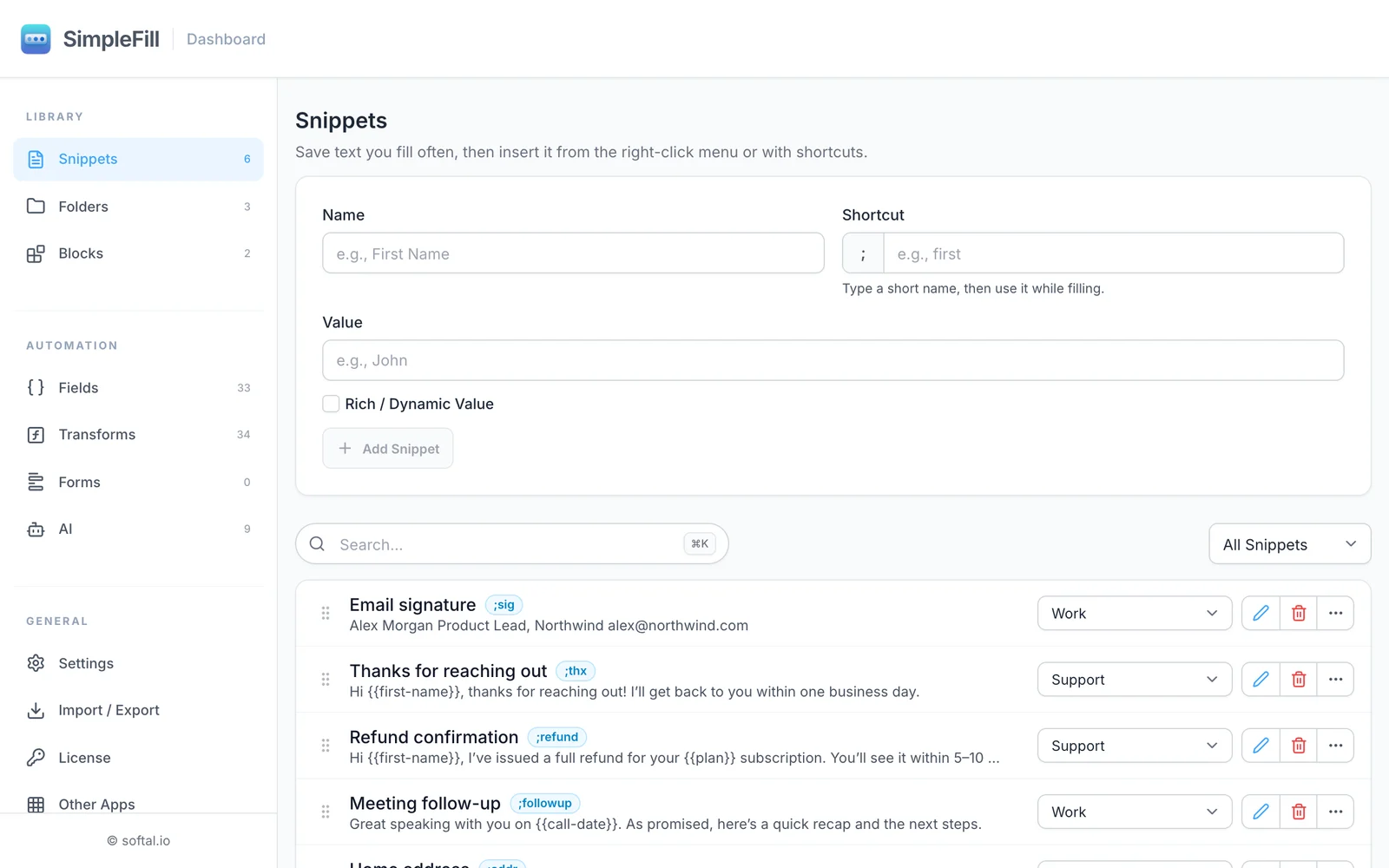
What used to be called Form Data is now Snippets, and a snippet can be a lot more than a line of text. Turn on Rich / Dynamic Value and you get a proper editor: headings, lists, links, colors, images, tables, and cards. Insert it into Gmail, Notion, or Google Docs and the formatting comes along.
Give a snippet a shortcut, like sig, and type ;sig followed by a space
anywhere you write. That's the whole trick.
Fields: templates that ask for the details
Most replies are 90% the same. Fields mark the 10% that isn't. Put a
first-name Field in a support reply, and when you insert it, SimpleFill shows
you the whole message with a box where the name goes. Type it, press Insert,
done.
Fields can be text, longer text, dropdowns, multi-selects, or dates. Dropdowns are handy when the answer is one of a few, like a plan name or a delivery time.
Smart Fields: details SimpleFill fills in for you
Some details shouldn't need typing at all. Smart Fields fill themselves in: today's date, the time, the title or link of the page you're on, or what's on your clipboard. Use them inside snippets, or type them anywhere:
;date    today's date
;url     the link to this page
;title   the page's title
Some Smart Fields do something instead of typing. Key presses press Tab or Enter for you, and a Click clicks a button or an option you choose on the page, so one snippet can fill a whole form and send it.
With add-ons from the marketplace, Smart Fields can also read details from specific websites, like the first name of the person you're messaging on LinkedIn, or the pull request you're reviewing on GitHub.
Transforms
Sometimes a value is almost right. Transforms fix it on the way in. Capitalize a name, turn a title into a URL slug, add a week to a date, or write it exactly the way you want:
{{date | addBusinessDays(3)}}
{{page.title | slugify}}
There are 34 of them, and you can chain as many as you like.
AI actions, right where you're writing
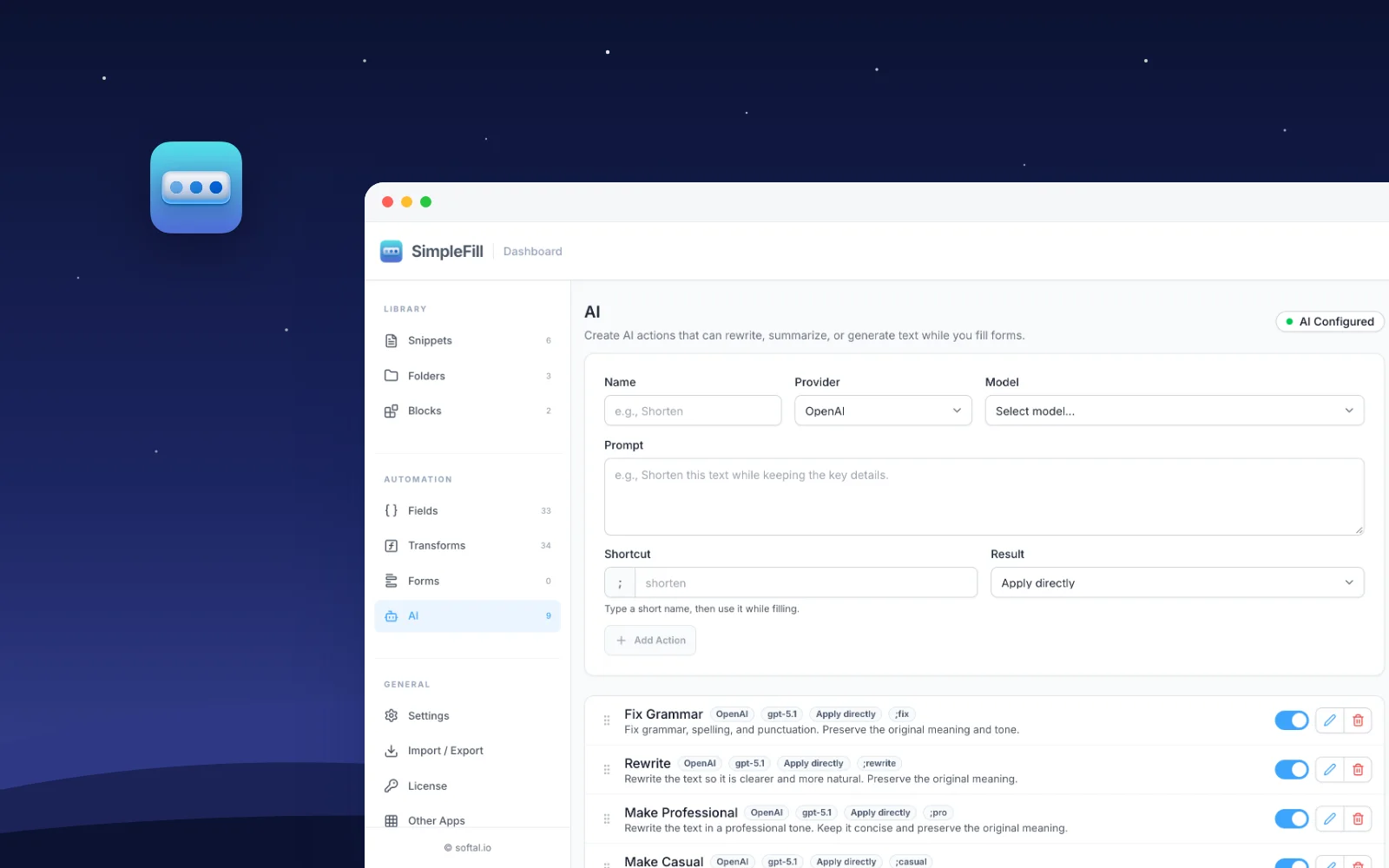
Select some text, or don't, and run an action. Fix Grammar, Translate,
Summarize, Make Professional, and six more come built in, and you can
write your own. Type ;fix at the end of a message, use the right-click menu, or
find it in Quick Access. Actions see the page around your text box, so
Generate Reply can answer the message above an empty reply box. Ask AI
takes whatever you type, on a text box, on text you've selected, or on the page
itself, and you can refine any result before you insert it. Save a few notes
about yourself in Memory, like how you sign off, and actions can use them.
You bring your own AI. Connect OpenAI or Anthropic with your API key, any OpenAI-compatible service, or a model running on your own computer. Your text, and the page details an action uses, go straight from your browser to the provider you chose, and with a local model they never leave your machine.
Quick Access
Press ⌘ Shift Space (or Ctrl Shift Space), or click the SimpleFill icon, and
you can search everything: snippets, saved forms, Smart Fields, and AI actions.
It looks at the field you're in, so in an email box your email is already at the
top. If you never learn a single shortcut, Quick Access still gets you there.
One-click form fill
Forms are still part of SimpleFill, and they got better. Save a whole form once, including dropdowns, checkboxes, and dates, even in the calendars sites draw themselves. Next time, right-click the page and choose One-Click Fill and the form, and every field fills in at once. You can keep more than one version, say Home and Office, and pick each time.
And a few smaller things
- Emoji shortcodes: type
:and a word to search more than 1,800 emoji, or:tada:for 🎉 straight away. - Site rules: turn shortcuts, suggestions, or emoji off on a whole website, one page, or a single field.
- Blocks: reusable pieces, like a signature or a disclaimer, that you drop into as many snippets as you like and update in one place.
- Google Docs: shortcuts and Quick Access work there too, which is usually where text expanders give up.
The marketplace
Not everyone wants to start from a blank page, so there's now a marketplace of ready-made templates: email signatures, support replies, invoices, résumés, meeting notes, and more. Some are free, some are a one-time purchase. Click Add to SimpleFill, change what you like, and it's yours.
Later on, you'll be able to publish and sell your own templates there too.
Pricing
Free, Standard, and Pro are still one-time purchases. Every feature in this release is in every plan, including Free; the plans only differ in how much you can save. Free has room for 5 of each kind of item and the 10 built-in AI actions, Standard is 50 of each for $29, and Pro is unlimited for $59. Cloud AI usage is billed by your AI provider, not by us.
Coming soon: Team and Enterprise plans with libraries you share, and SimpleFill AI, an add-on that runs your AI actions without an API key. Those will be subscriptions, and they're optional. See Plans.
Already using SimpleFill?
You don't need to do anything. The first time SimpleFill 4 runs, your saved Form Data becomes Snippets, with the same folders. Your old backups still import.
Where to go from here
If you're new, the getting started guide is the quickest way in. The docs cover every feature, with examples for support teams, sales, freelancers, and developers. And if there's something you'd like SimpleFill to do next, we'd love to hear it.