Guides6 min read
How to autofill forms in Safari: save a form once, fill it in one click
Safari's AutoFill knows your contact card, your passwords, and your cards. Here's how to fill the forms you repeat on your Mac in one click, or with one shortcut that fills the form and sends it.
By Ram Patra
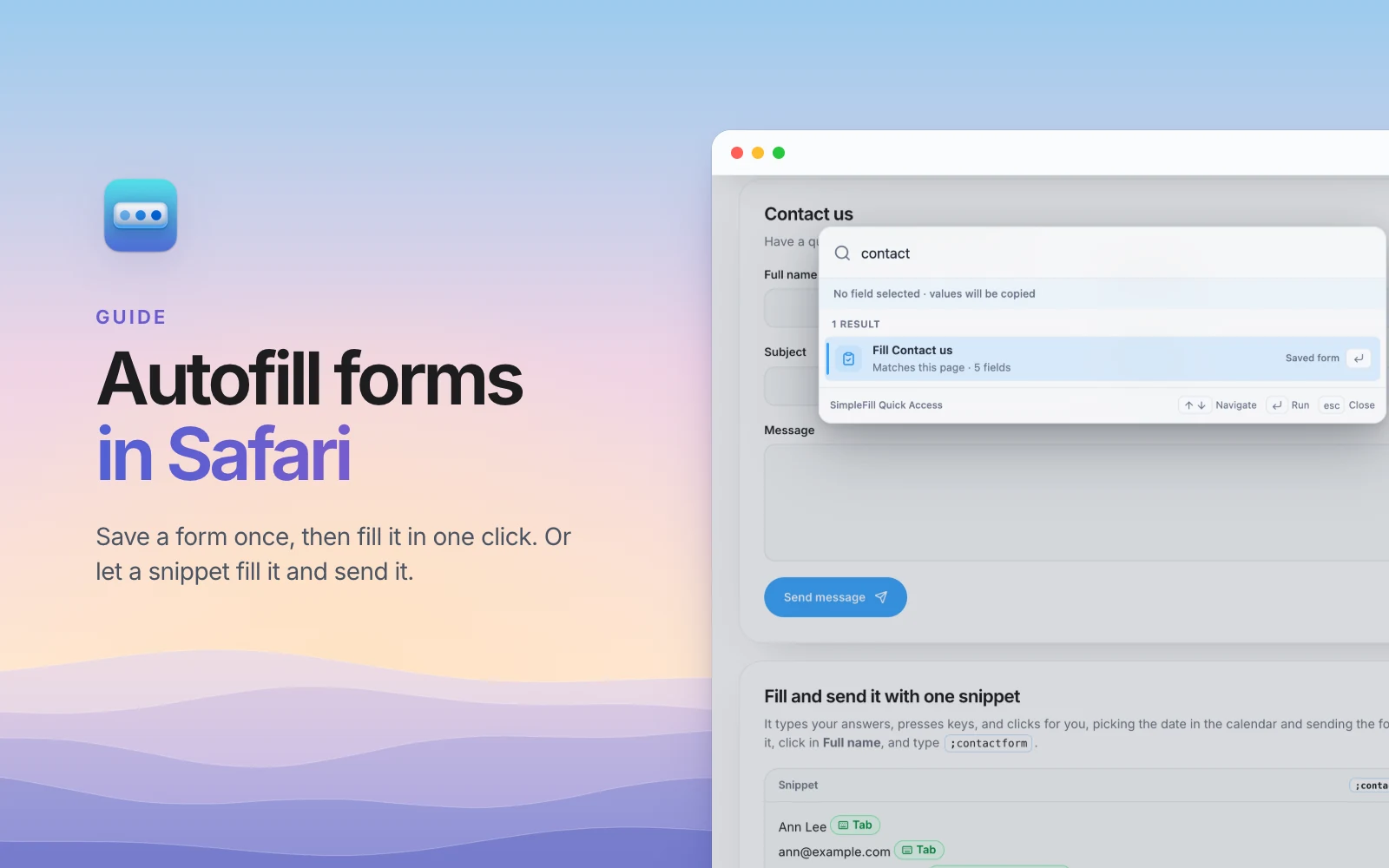
Some forms come back every week: a support portal's contact form, a timesheet, a supplier's order form, a sign-up you test again and again. Same name, same email, same subject, same answers. Safari fills in your address and your card for you, and then leaves the rest of the form to you.
This guide shows two ways to fill those forms in Safari on a Mac with SimpleFill: save a form once and fill it in one click, or write one snippet that fills the whole form and sends it.
What Safari's AutoFill does, and where it stops
In Safari, choose Safari > Settings > AutoFill, and you'll find four options:
- Using information from my contacts fills in your name, address, and phone from your card in Contacts.
- Usernames and passwords signs you in.
- Credit cards fills in a saved card at checkout.
- Other forms remembers what you typed into a form and offers it again when you come back to that page.
That covers sign-ins and checkouts well. For the forms you repeat, it falls short:
- You can't set your answers. Safari keeps what you typed last time. Its Edit button for other forms lists websites, so you can remove one, not change what's saved.
- Dates don't keep up. A remembered date is the date you typed, not this Friday or a week from today.
- It stops at filling. Nothing presses Tab, ticks a box the site drew itself, or presses Send for you.
Add SimpleFill to Safari
- Get SimpleFill from the Mac App Store, and open it once.
- In Safari, choose Safari > Settings > Extensions, and tick SimpleFill.
- Allow it on all websites when Safari asks. It needs that to fill forms on any site, and it keeps everything it saves on your Mac.
There's more on setting it up in the best text expander for Safari.
Way 1: save the form once, fill it in one click
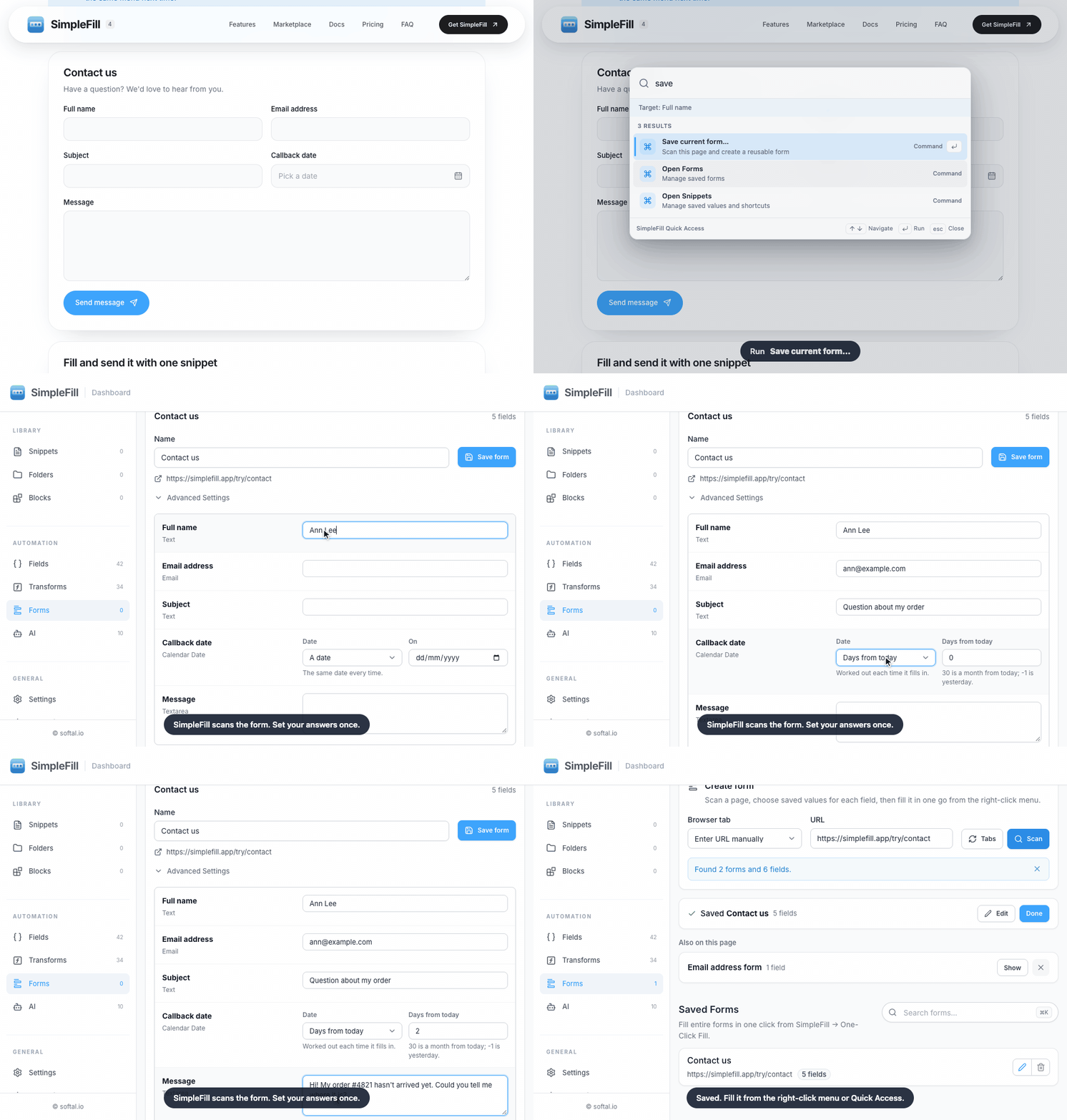
Open the form, then either right-click inside it and choose SimpleFill > One-Click Fill > Save Form, or click in one of its fields and press ⌘ Shift Space to open Quick Access and run Save current form….
SimpleFill's dashboard opens on Forms with that form's fields, and folds
any other forms on the page, like a newsletter box, out of the way. Type your
answers, set the date to two days from today, and click Save form. It's
named after the form's heading, Contact us, which you can change:
Next time you're on that page, right-click and choose SimpleFill > One-Click Fill > Contact us. Or open Quick Access, type a word of the form's name, and press Return:
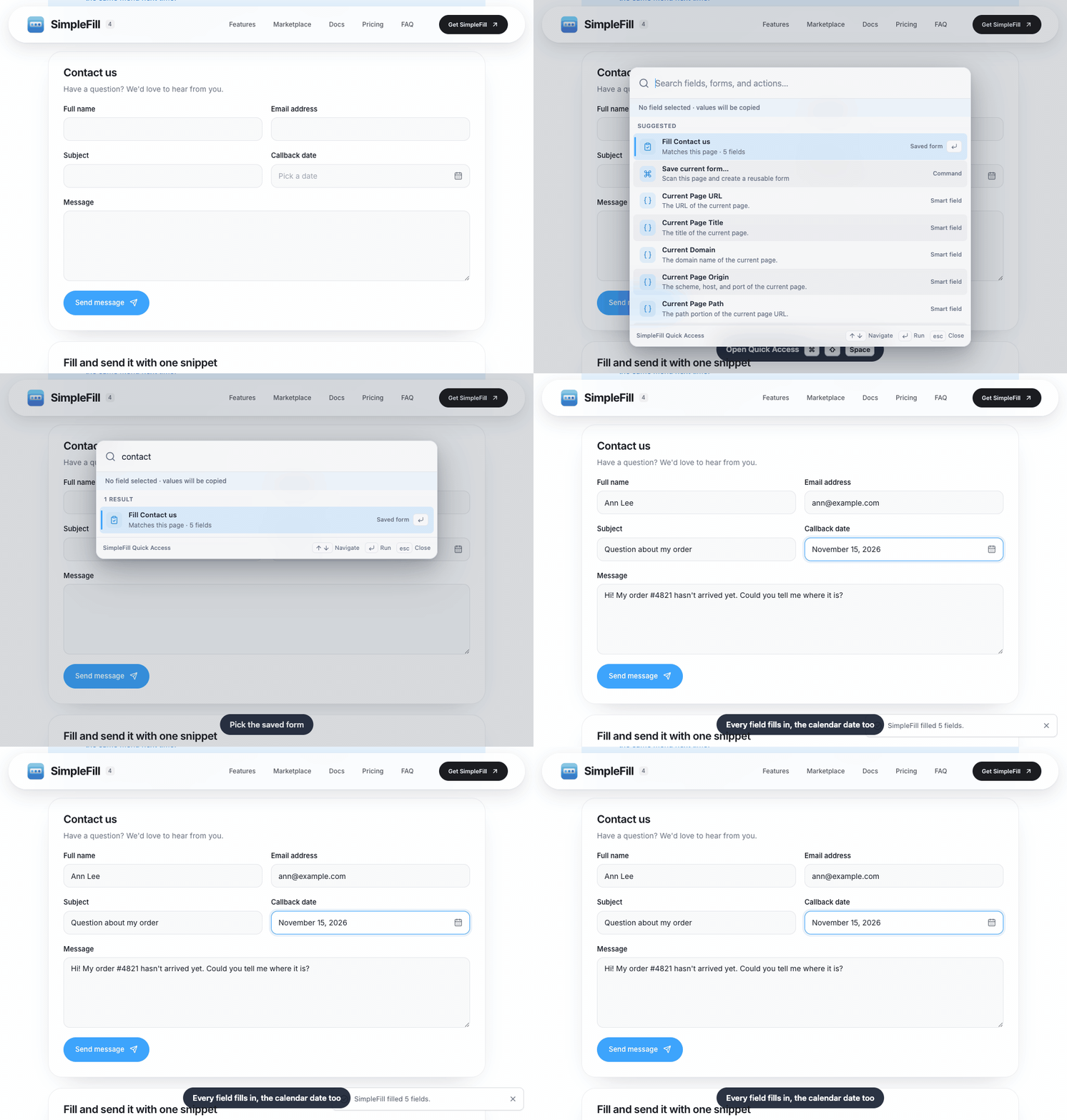
Every field fills in at once, and SimpleFill picks the date in the form's calendar. A saved form leaves Send to you, so you can check it first (to fill a form and send it in one go, use a snippet, as below).
It saves text boxes, text areas, dropdowns, radio buttons, checkboxes, multi-select lists, and dates. It never saves passwords, and it skips hidden fields and file uploads.
Dates that keep up
For each date, choose A date for one that never changes, like a date of
birth, Today, or Days from today: 7 for a week from now, -1 for
yesterday. SimpleFill works the date out each time it fills. That works for
the browser's own date boxes and for calendars that sites draw themselves,
where SimpleFill opens the calendar, moves to the right month, and clicks the
day.
More than one version
Save the same form twice with different answers, like Shipping: Home and
Shipping: Office. Both show up on that page, and you pick one each time.
Way 2: one snippet that fills the form and sends it
A snippet can do more than type. Put key presses and Clicks between your answers, and it moves through the form for you. In SimpleFill's editor, each one is a pill. Here's the practice form's snippet, with each pill in brackets:
Ann Lee [Tab] ann@example.com [Tab] Question about my order
[Click “Callback date”] [Click today + 2 days]
[Click “Message”] Hi! My order #4821 hasn't arrived yet. Could you tell me where it is? Thanks, Ann
[Tab] [Enter]
Click in the form's first field and type the snippet's shortcut,
;contactform. SimpleFill types the name, presses Tab, and types the email
and the subject. The date box opens a calendar, so the snippet clicks it, then
clicks the day two days from today, worked out each time. Then it clicks into
Message, writes it, and Tab and Enter press Send message:
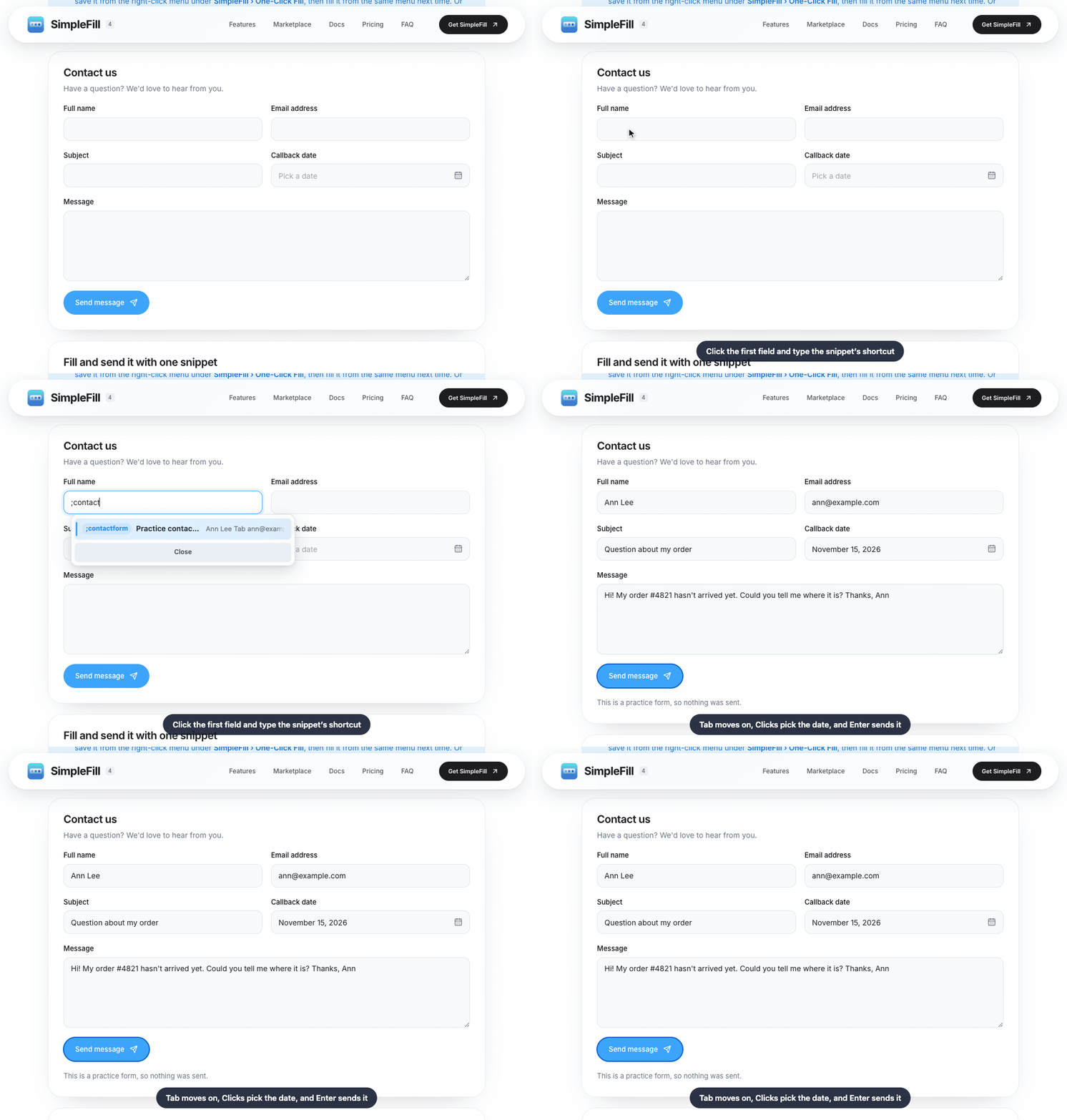
This snippet is on the practice contact form, under the form. Click Add to SimpleFill, then Add Snippet in SimpleFill, and try it there.
To add a Click to your own snippet, you point at the element on the page once, and the snippet clicks it every time. Clicks also work on the dropdowns, switches, and buttons many sites draw themselves, which ignore the keyboard, and they let one shortcut work through a form that spans several pages.
Which one to use
| The form | Use |
|---|---|
| The same answers every time | A saved form, filled in one click |
| Two sets of answers, like home and office | Two saved forms, pick one |
| You want it sent too, or it spans several pages | A snippet with key presses and Clicks |
| Part of the answer changes each time | A snippet with Fields |
Try it on the practice form
The practice contact form is made for this. Save it from Quick
Access, change an answer or two, and fill it again. Then add the snippet under
the form, click in Full name, and type ;contactform. Nothing you type
there is sent anywhere.
Your answers stay on your Mac
Saved forms hold personal details, so it matters where they live. SimpleFill keeps your forms and snippets in Safari's storage on your Mac. There's no account, and nothing is sent to us in the background. The privacy page lists every case where anything leaves your Mac.
Get started
Get SimpleFill for Safari on the Mac App Store. It's a one-time purchase with everything in Pro, so there's no limit on saved forms, and it works on all your Macs. The one-click form fill docs cover every option.
Not on Safari? SimpleFill is also on Chrome, Edge, and Firefox, and there's a guide to autofilling forms in Chrome.